
Component Setup
The component is configured per Lightning record page through Lightning App Builder. Each instance is independent — you can place several copies on the same page, each with different settings.
Adding the component to a page
Section titled “Adding the component to a page”- Open the target record page (e.g., an Account record).
- Click the gear icon (Setup) → Edit Page.
- In the left component palette, find Tucario Smarter Files under Custom — Managed.
- Drag it onto the desired region of the page.
- Configure the properties in the right-hand panel.
- Save and Activate the page.
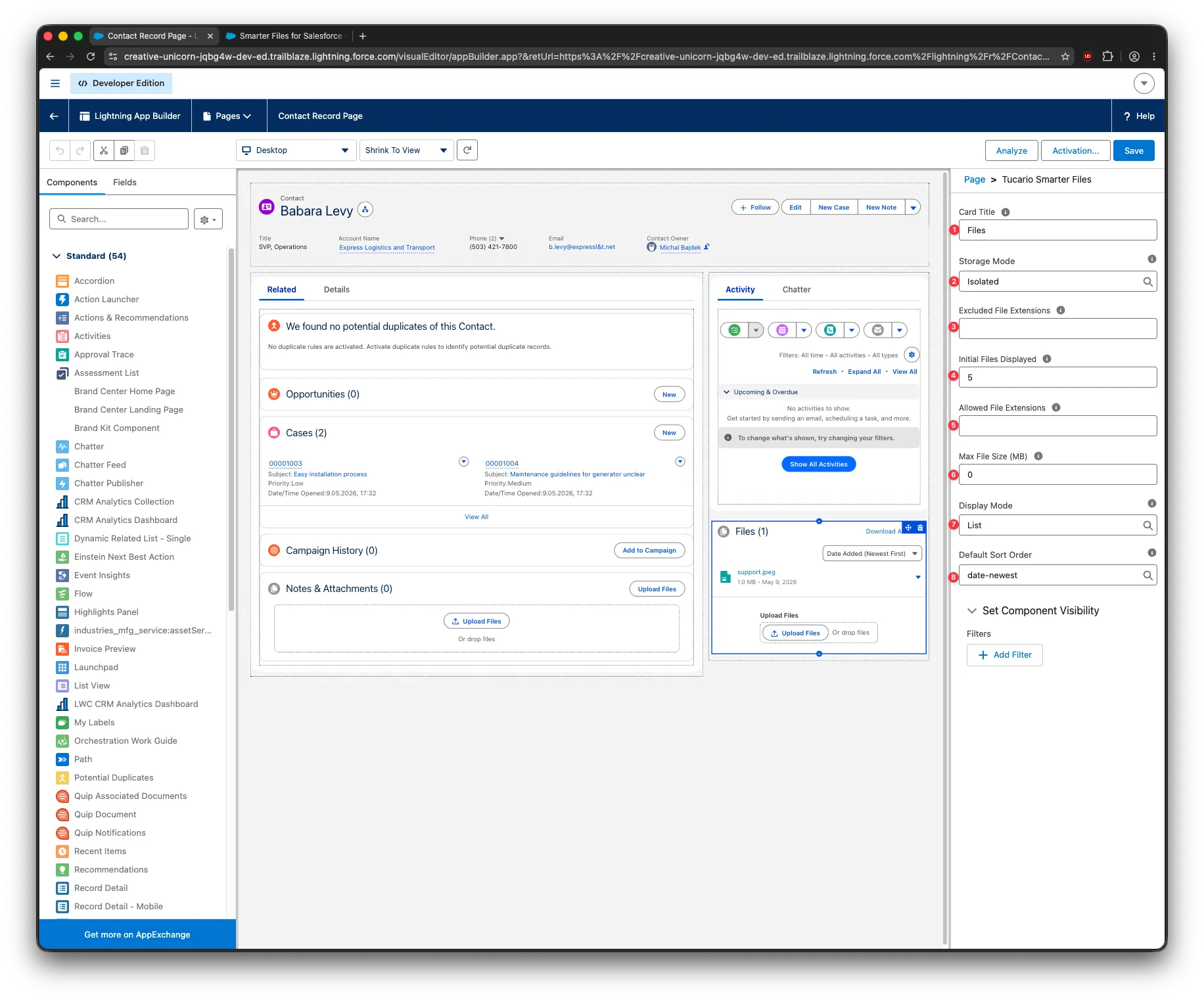
Component properties
Section titled “Component properties”Source of truth: src/lwc/tucarioFilesWithDownloadAll/tucarioFilesWithDownloadAll.js-meta.xml.
The numbers in the first column match the red callouts on the screenshot above.
| # | Property | Type | Default | Description |
|---|---|---|---|---|
| 1 | Card Title (cardTitle) | String | Files | Header text shown in the component card. Useful when placing multiple instances on the same page. |
| 2 | Storage Mode (storageMode) | Picklist Standard, Isolated | Standard | Standard links files via native ContentDocumentLink. Isolated links files only through the junction object — files are hidden from the standard Files related list and unlock visibility controls (categories, private flag). |
| 3 | Excluded File Extensions (excludedFileExtensions) | String | (empty) | Comma-separated denylist (e.g., exe,bat,scr). Listed extensions cannot be uploaded. |
| 4 | Initial Files Displayed (initialFilesDisplayed) | Integer | 5 | Number of files shown before the “Show All” button appears. 0 or empty means show all. |
| 5 | Allowed File Extensions (allowedFileExtensions) | String | (empty) | Comma-separated allowlist (e.g., pdf,docx,png). When set, only these extensions can be uploaded. Empty means no allowlist filter. |
| 6 | Max File Size (MB) (maxFileSize) | Integer | 0 | Per-file upload size cap in megabytes. 0 means no limit. |
| 7 | Display Mode (displayMode) | Picklist List, Tiles | List | List shows vertical rows with name/size/date. Tiles shows a responsive grid of cards with file-type icons. |
| 8 | Default Sort Order (defaultSortOrder) | Picklist | date-newest | Initial sort applied when the page loads. Users can change it at runtime via the sort combobox above the file list. Allowed values: date-newest, date-oldest, size-largest, size-smallest, name-az, name-za. |
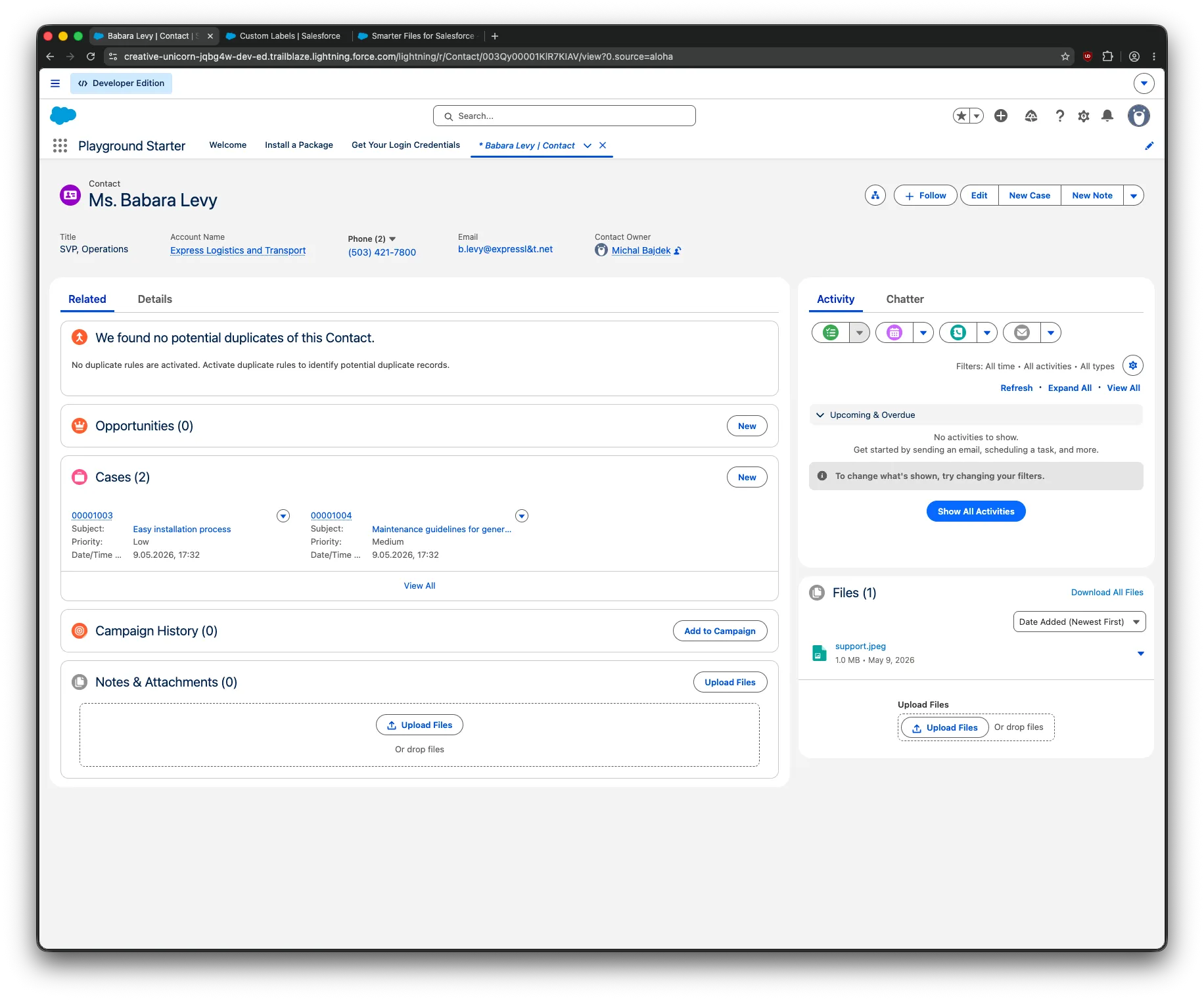
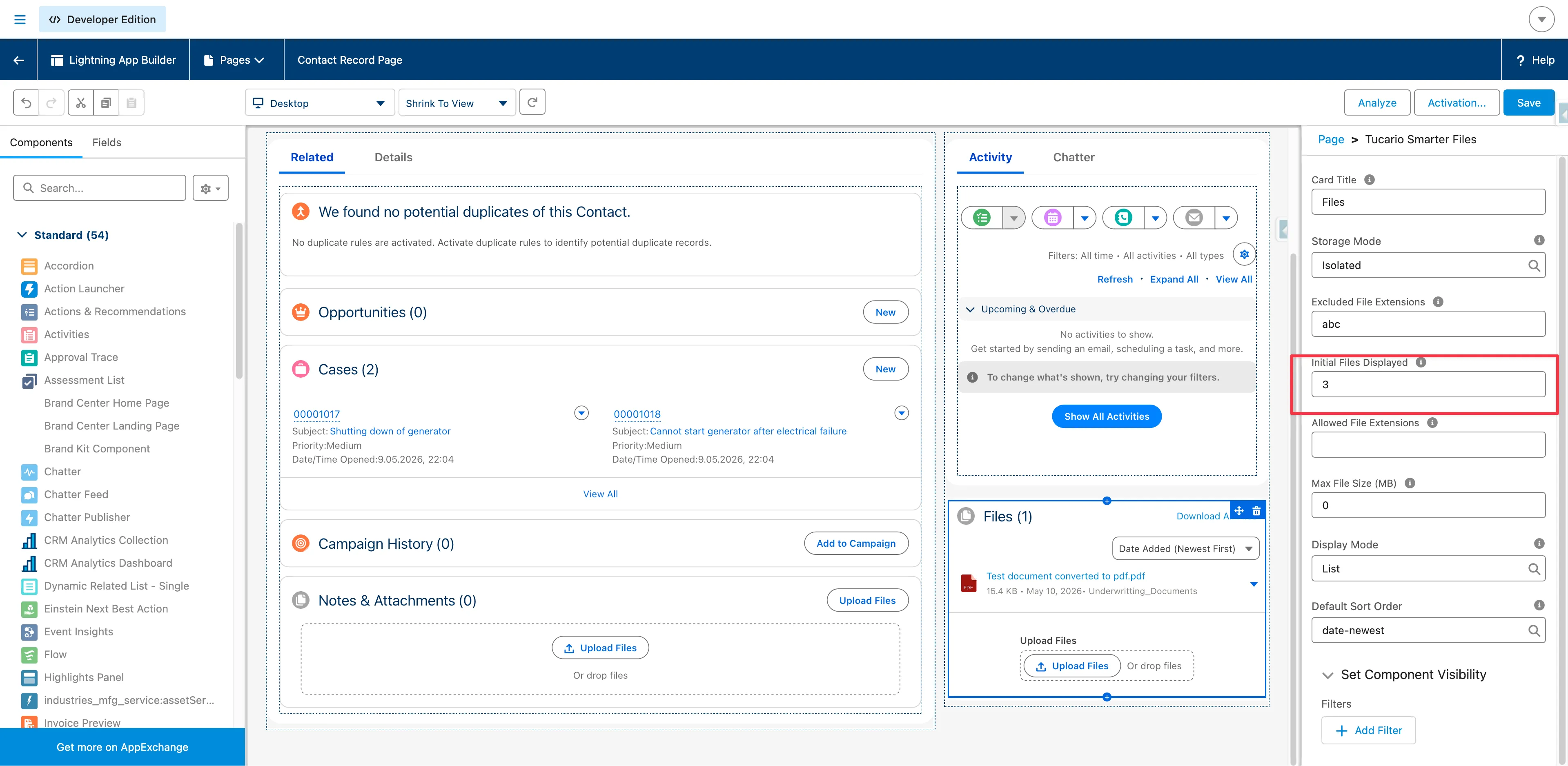
Extension format
Section titled “Extension format”The parser is forgiving — leading dots are stripped, whitespace is trimmed, matching is case-insensitive. All of the following are equivalent inputs:
docx,exe,pdf.docx, .exe, .pdfDOCX , EXE , PDF.DOCX, exe , .PdfHow the Allowed (5) and Excluded (3) lists interact
Section titled “How the Allowed (5) and Excluded (3) lists interact”The validation runs client-side in tucarioFilesWithDownloadAll.js (validateUploadedFiles, lines 596–610) in two sequential checks. A file is uploaded only if it passes both:
- Allowed check — if Allowed File Extensions is set, the file’s extension must be on that list. Files with no extension are blocked when an Allowed list is configured (no match is possible).
- Excluded check — if Excluded File Extensions is set, the file’s extension must not be on that list.
This produces the following behaviour:
| Allowed (5) | Excluded (3) | File extension | Result |
|---|---|---|---|
| empty | empty | any | Allowed |
pdf,docx | empty | pdf | Allowed |
pdf,docx | empty | exe | Blocked (not in Allowed) |
| empty | exe,bat | exe | Blocked (in Excluded) |
| empty | exe,bat | pdf | Allowed |
pdf,exe | exe,bat | exe | Blocked — Excluded wins when an extension appears on both lists |
pdf,docx | exe,bat | (no extension) | Blocked (Allowed list configured, no match possible) |
Practical takeaway: when you only need to block a few risky types, use Excluded File Extensions alone. When you need to enforce a strict whitelist, use Allowed File Extensions alone — adding an Excluded list on top is only useful if a subset of allowed extensions should still be denied (in which case Excluded takes precedence).
Common configurations
Section titled “Common configurations”Document-only library
Section titled “Document-only library”Card Title: DocumentsStorage Mode: StandardAllowed File Extensions: pdf,docx,doc,xlsx,xls,pptx,pptMax File Size (MB): 25Display Mode: ListDefault Sort Order: date-newestConfidential file space (Isolated)
Section titled “Confidential file space (Isolated)”Card Title: Confidential DocumentsStorage Mode: IsolatedExcluded File Extensions: exe,bat,scr,comInitial Files Displayed: 10Display Mode: ListDefault Sort Order: date-newestImage gallery (Tiles)
Section titled “Image gallery (Tiles)”Card Title: ImagesStorage Mode: StandardAllowed File Extensions: png,jpg,jpeg,gif,webpDisplay Mode: TilesInitial Files Displayed: 12Customizing displayed text
Section titled “Customizing displayed text”Every user-facing string is a Salesforce Custom Label. To customize any text:
- Setup → Custom Labels.
- Filter by
Tucarioto find all relevant labels (Tucario_Files_*,Tucario_Common_*,Tucario_Visibility_*,Tucario_Wizard_*). - Edit the label value, save, and refresh the page.
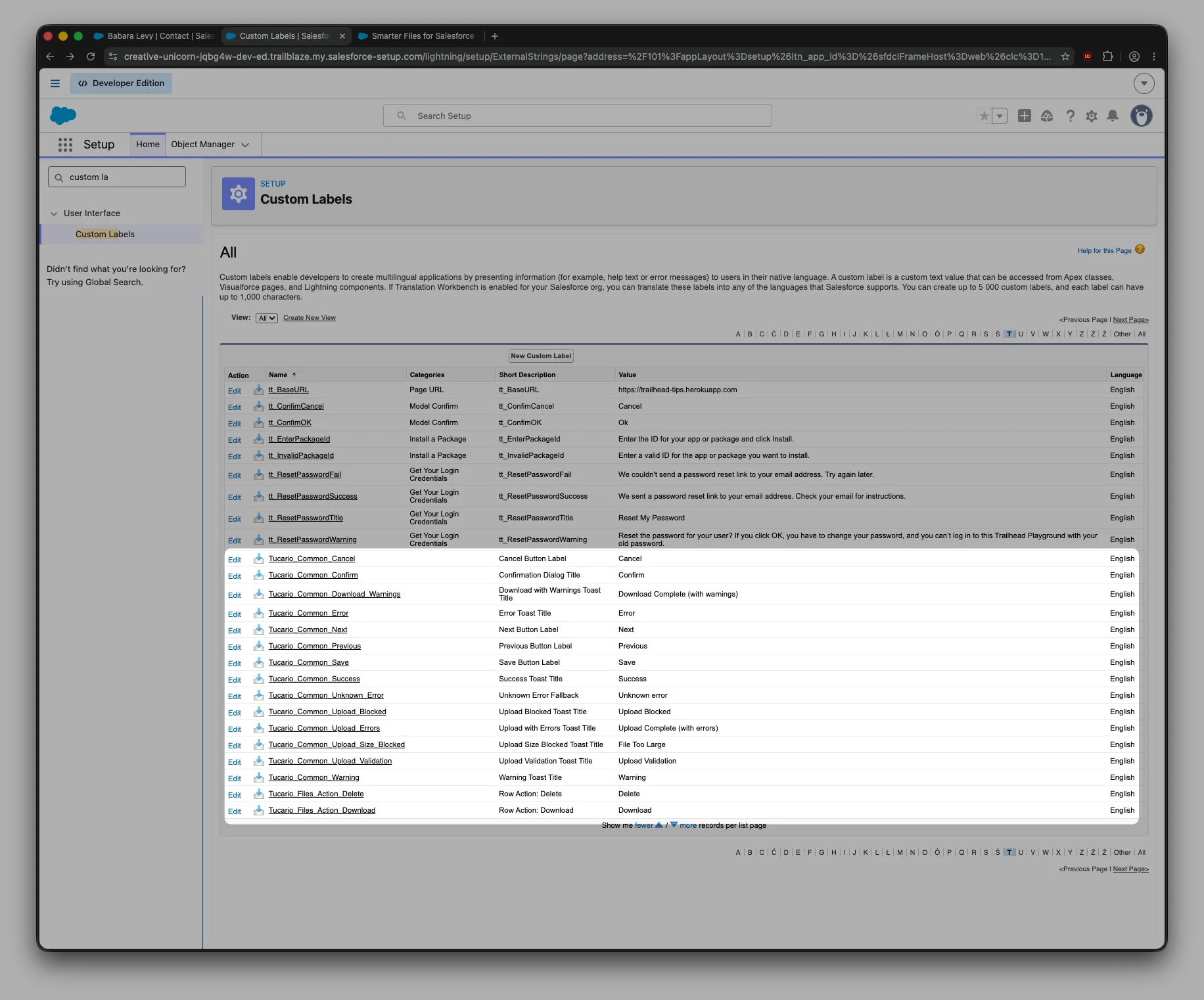
See Custom Labels for translation tips.
Placement Tips
Section titled “Placement Tips”- Works in the main content area, sidebar, or full-width regions of the record page.
- Can be placed on any standard or custom object record page.
- Multiple instances on the same page are supported — useful for splitting a record into different file spaces (e.g., one Standard-mode instance for general files and one Isolated-mode instance for confidential documents). Set distinct Card Titles to tell them apart.
- The component is record-page only. The Configuration Wizard ships as a separate app page accessible from the Smarter Files by Tucario app launcher entry.