
Custom Labels
Overview
Section titled “Overview”Every piece of user-facing text in the Smarter Files component is stored as a Salesforce Custom Label — about 98 labels in total covering buttons, headers, modals, toasts, validation messages, and the Configuration Wizard. This lets you:
- Translate the component into any language Salesforce supports.
- Adjust wording to match your organization’s terminology (e.g., “Documents” instead of “Files”).
- Customize error messages and toasts without touching code.
Customizing Labels
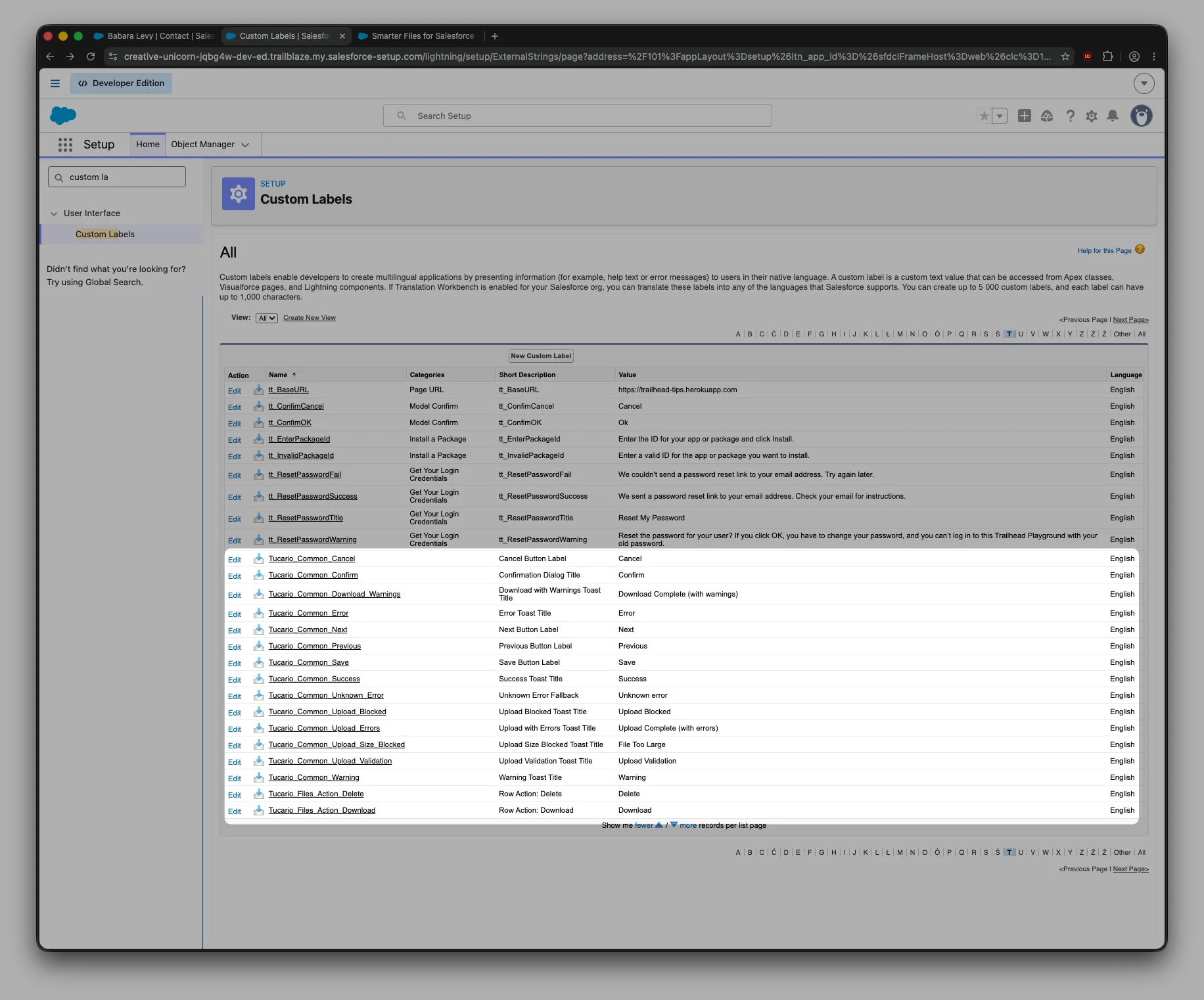
Section titled “Customizing Labels”- Go to Setup → Custom Labels in Salesforce.
- Filter by namespace prefix
smarterfiles(or search forTucario_). - Click a label to edit its value, or add translations under Local Translations / Overrides for additional languages.
Label Categories
Section titled “Label Categories”| Prefix | Purpose | Examples |
|---|---|---|
Tucario_Common_* | Shared UI text and validation messages used in multiple places | Tucario_Common_Cancel, Tucario_Common_Save, Tucario_Common_Upload_Blocked, Tucario_Common_Upload_Size_Blocked |
Tucario_Files_* | The main file list component — actions, errors, empty states, sort options | Tucario_Files_Action_Delete, Tucario_Files_Delete_Error |
Tucario_Wizard_* | Configuration Wizard step labels, prompts, and confirmations | step titles, button labels, deployment status messages |
Tucario_Visibility_* | Visibility controls — categories, private documents, role assignment | category picker, “Mark as Private” / “Remove Private”, role hierarchy labels |
Example: Renaming “Files” to “Documents”
Section titled “Example: Renaming “Files” to “Documents””- Setup → Custom Labels → search for
Tucario_Files_Card_Title(or whichever label drives the header you want to change). - Click Edit → change the value to
Documents. - Save. The component picks up the new value on next page load — no redeploy needed.
If you want different text per record-page placement, use the Card Title design property on the component instead — it overrides the label for that specific instance.