Private Documents
Overview
Section titled “Overview”Any user can mark a file as private. A private file is visible only to:
- The user who marked it private (recorded in
Owner_Id__con the visibility junction). - Users with the
Tucario_View_Private_Documentscustom permission — typically assigned to admins, HR, or compliance via the Tucario - View Private Documents permission set.
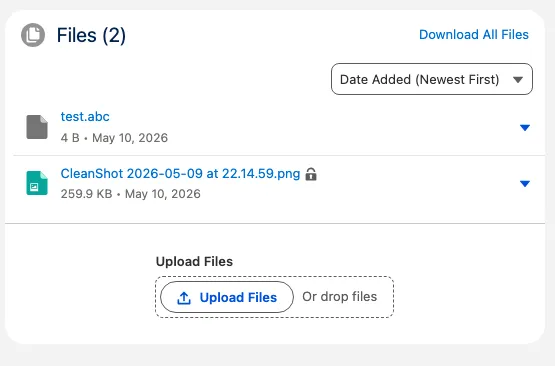
Private files display a lock icon next to the file name in both List and Tile views.
Marking a File Private
Section titled “Marking a File Private”- Open the file’s context menu.
- Select Mark as Private.
- A lock icon appears next to the file name; the file is now hidden from everyone except the owner and View Private users.
Removing the Private Flag
Section titled “Removing the Private Flag”The owner (and any user with View Private Documents) can remove the flag:
- Open the context menu on the private file.
- Select Remove Private.
- The lock icon disappears and the file falls back to the normal visibility rules (including any category restrictions).
Who Can See a Private File
Section titled “Who Can See a Private File”| User | Can see the file? |
|---|---|
| The owner (who marked it private) | Yes |
| User with View Private Documents permission | Yes |
| Everyone else | No — the file is filtered out server-side and never appears in the list, even if they previously knew the file existed |
Stacking with Categories
Section titled “Stacking with Categories”Private and category-based visibility stack — both checks must pass for a file to be visible. If a file is private and assigned to an HR-only category, only users who pass both gates (the owner with HR role, or a View Private user with HR role) will see it. See Visibility Controls for the full filtering logic.
Behind the Scenes
Section titled “Behind the Scenes”When you mark a file private, Smarter Files writes to the Tucario_File_Visibility__c junction:
- Sets
Is_Private__c = true. - Sets
Owner_Id__cto the current user (enforced by theOwner_Required_When_Privatevalidation rule —Owner_Id__ccannot be null whenIs_Private__cis true).
All filtering happens server-side in getFilesList() before the response leaves the Salesforce server, so private files are never sent to unauthorized browsers.
Configuration Wizard reference
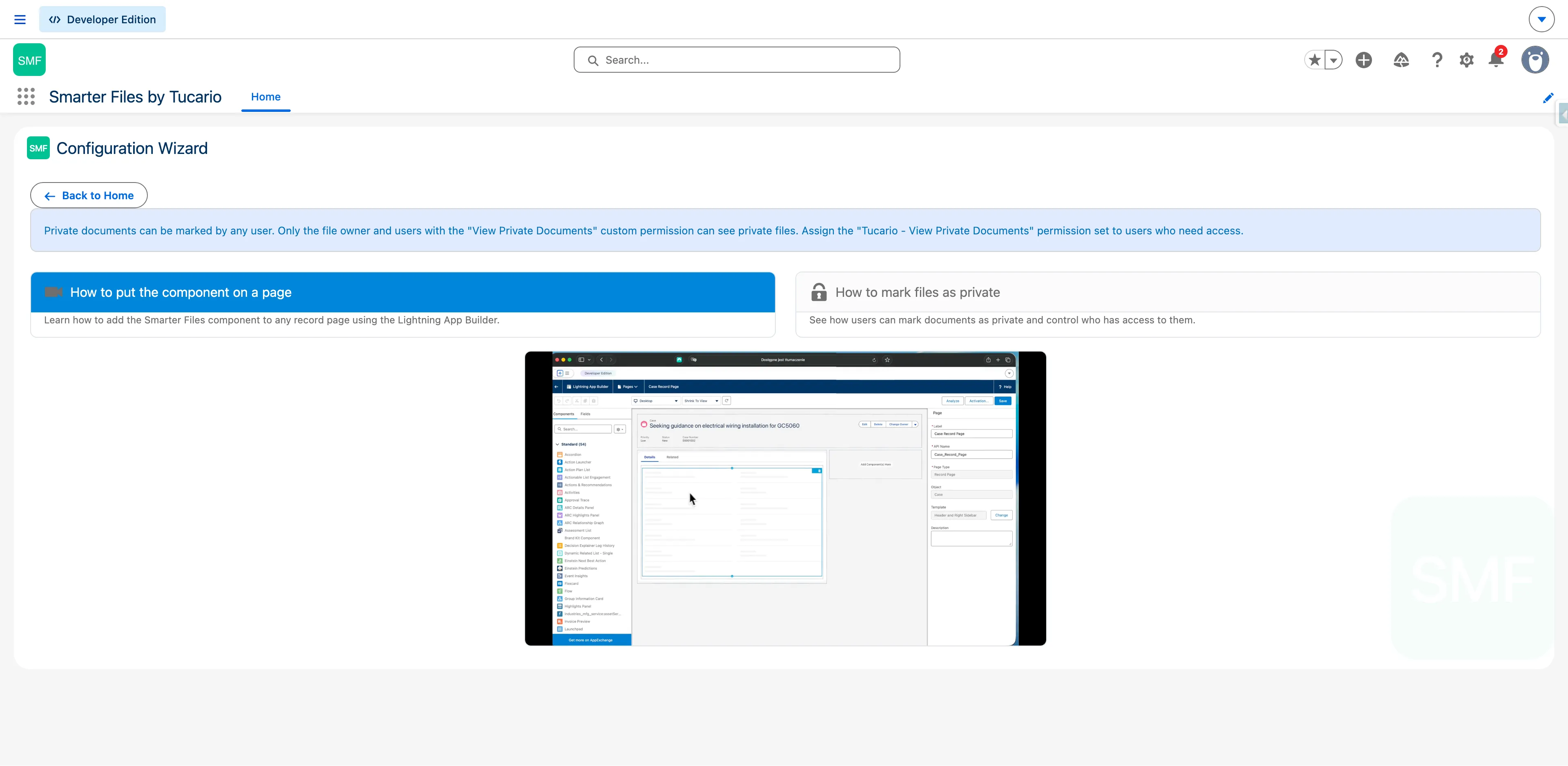
Section titled “Configuration Wizard reference”Reached from the Private Documents action card on the Configuration Wizard home view. This is a standalone explanatory page (no wizard steps). It contains an info banner about how private documents work and two video tutorial cards:
- How to put the component on a page — short tutorial on adding the component via App Builder.
- How to mark files as private — walk-through of the per-file action.
Clicking a card plays the corresponding <video> element inline.