Views & Sorting
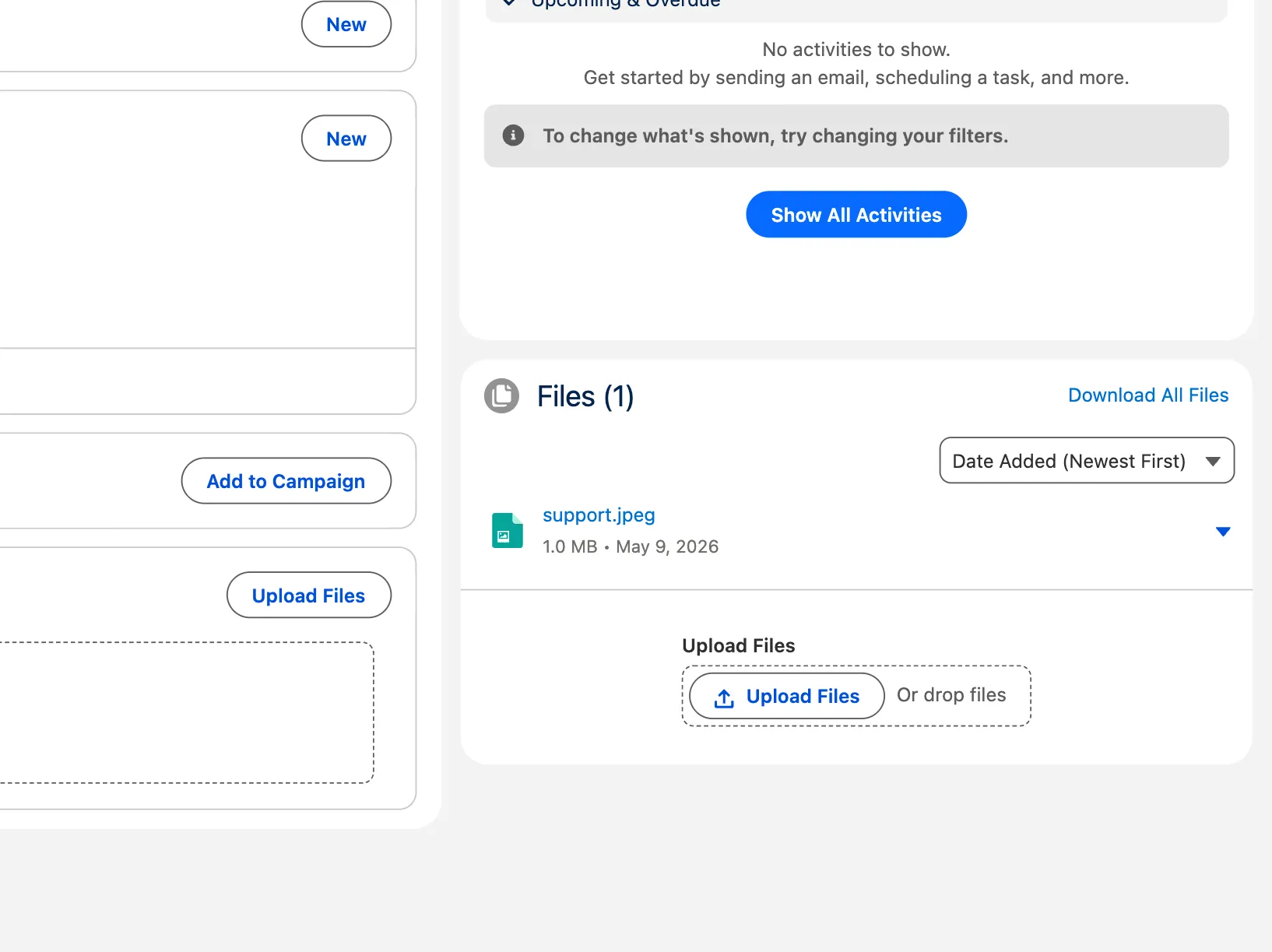
Anatomy of the component
Section titled “Anatomy of the component”The card has three regions:
- Header — card title (configurable), file icon, and a
Download Alllink on the right when at least one file is present. - Body — the file list (or tile grid), with a sort combobox above the list.
- Footer — upload area with optional hint lines about allowed extensions and max size.
List View
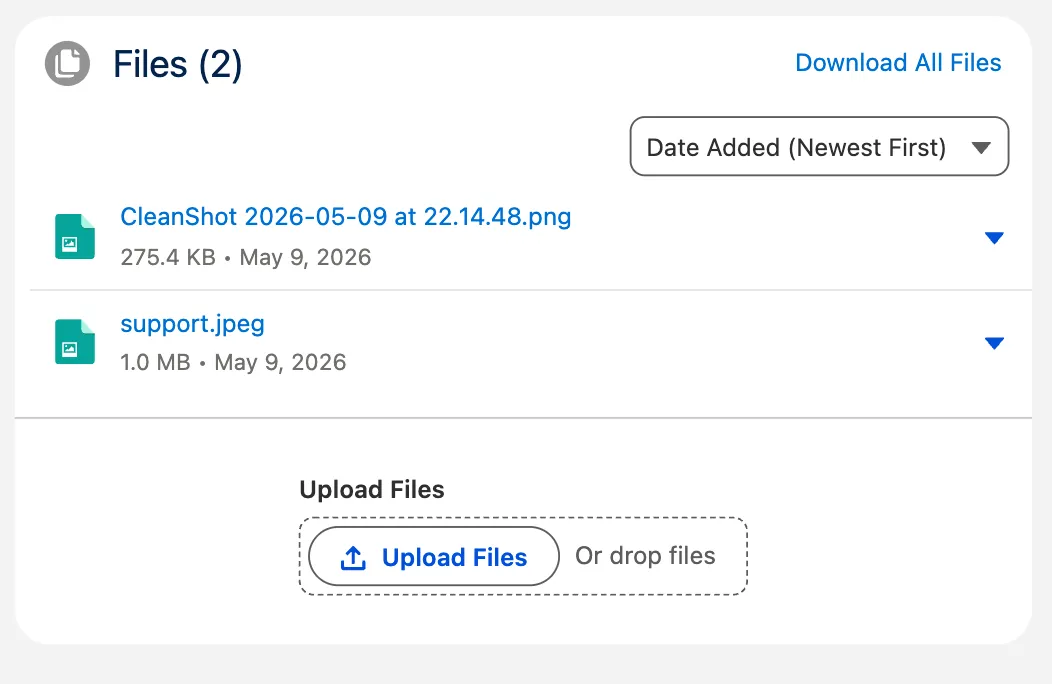
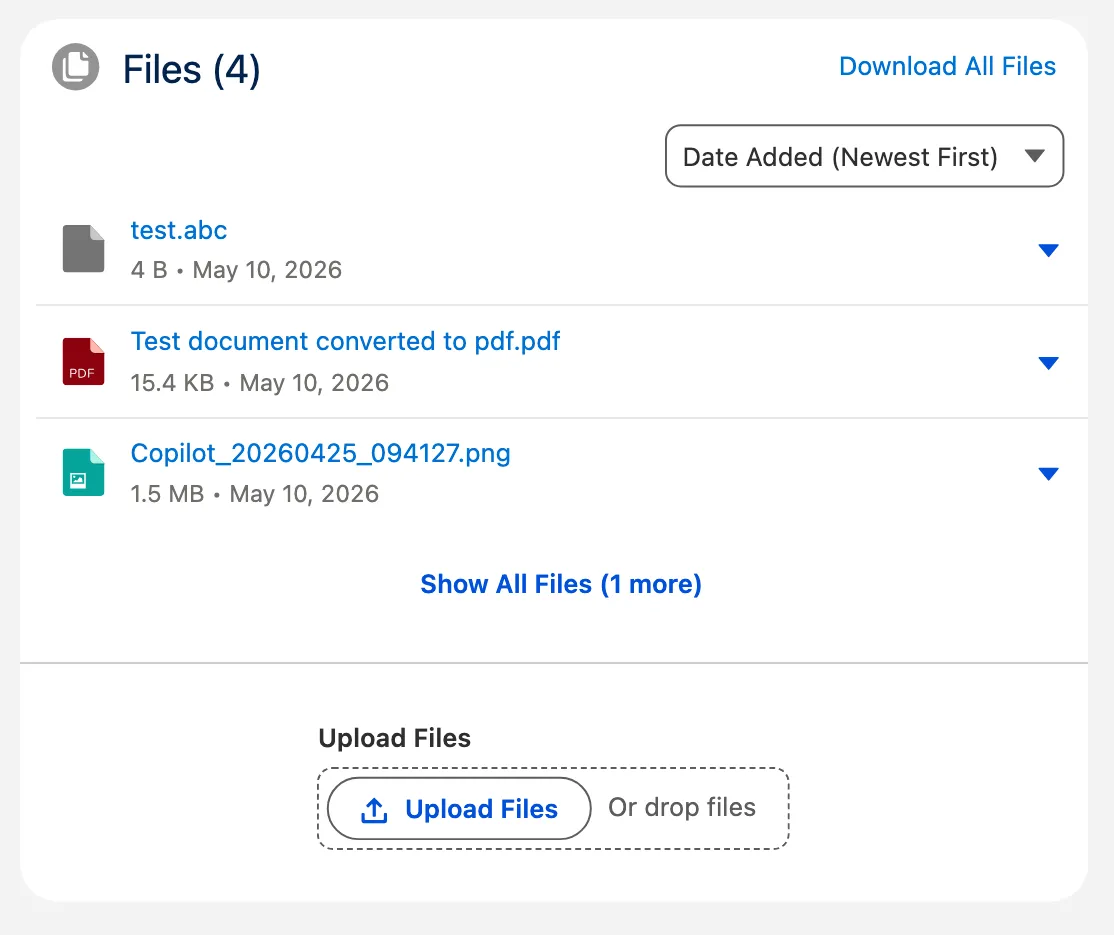
Section titled “List View”Each row shows: file-type icon, file name (clickable preview), formatted size, date, optional category label, and an action menu on the right. Private files display a small lock icon next to the name.
Tile View
Section titled “Tile View”Files are rendered as a responsive grid of cards. Each tile has a file-type icon, the file name, and the formatted size.
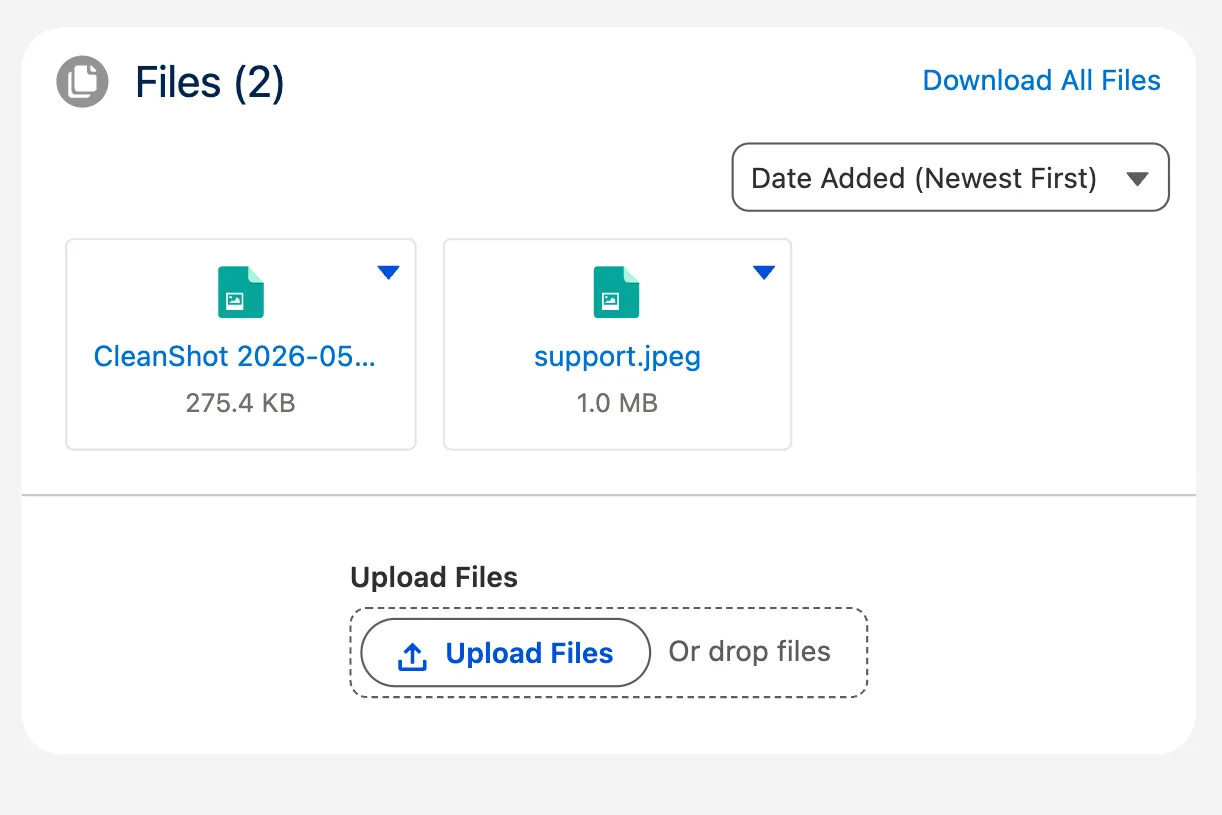
The admin sets the default view via the Display Mode design property in App Builder (List or Tiles).
Sorting
Section titled “Sorting”Above the file list there is a combobox (no visible label) that lets users re-sort at runtime. Sorting is performed client-side on the already-loaded list — no server round-trip.
| Value | Behaviour |
|---|---|
date-newest | Date Added (newest first) — default |
date-oldest | Date Added (oldest first) |
size-largest | Largest first (handy for surfacing real attachments above small signature images) |
size-smallest | Smallest first |
name-az | Name A → Z |
name-za | Name Z → A |
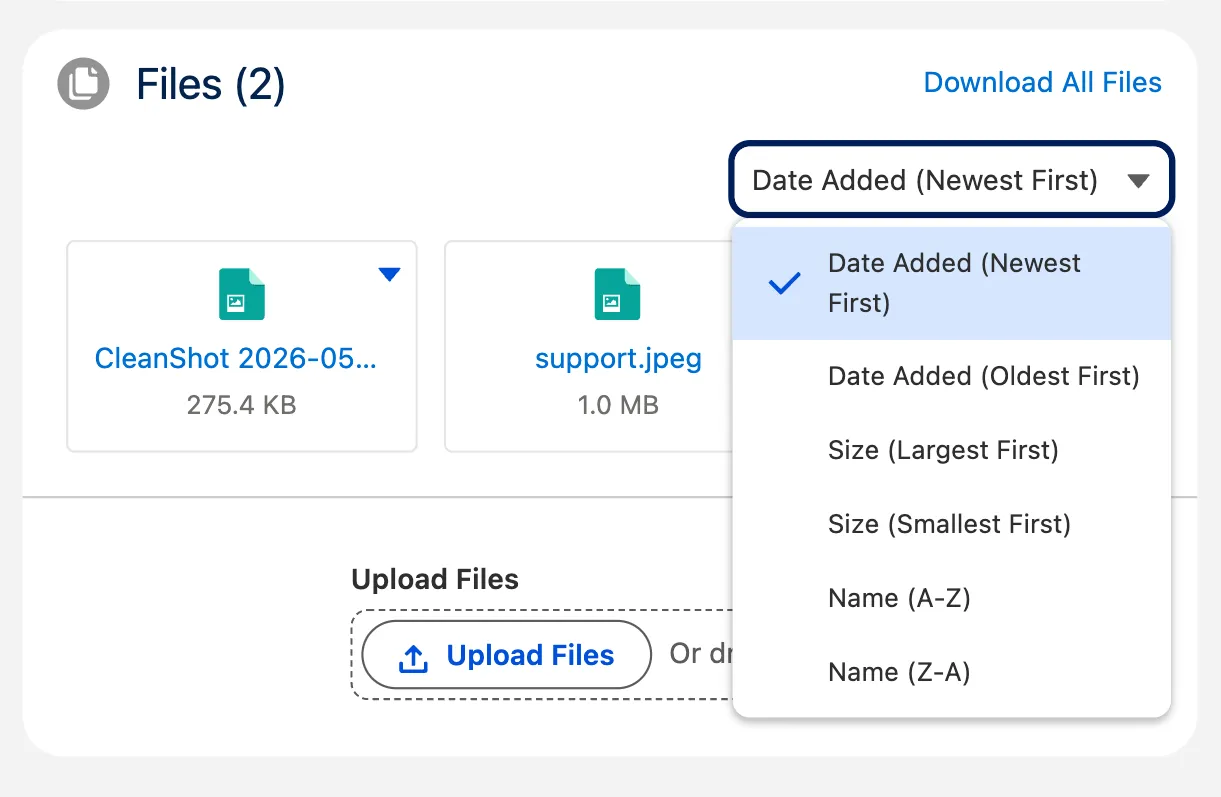
The admin sets the default via the Default Sort Order design property. Users can override at runtime — their choice persists for that record page during the session.
Show All toggle
Section titled “Show All toggle”When Initial Files Displayed is greater than 0 and the record has more files than the limit, a “Show All” button appears below the list. Clicking it expands the view; clicking again collapses it.
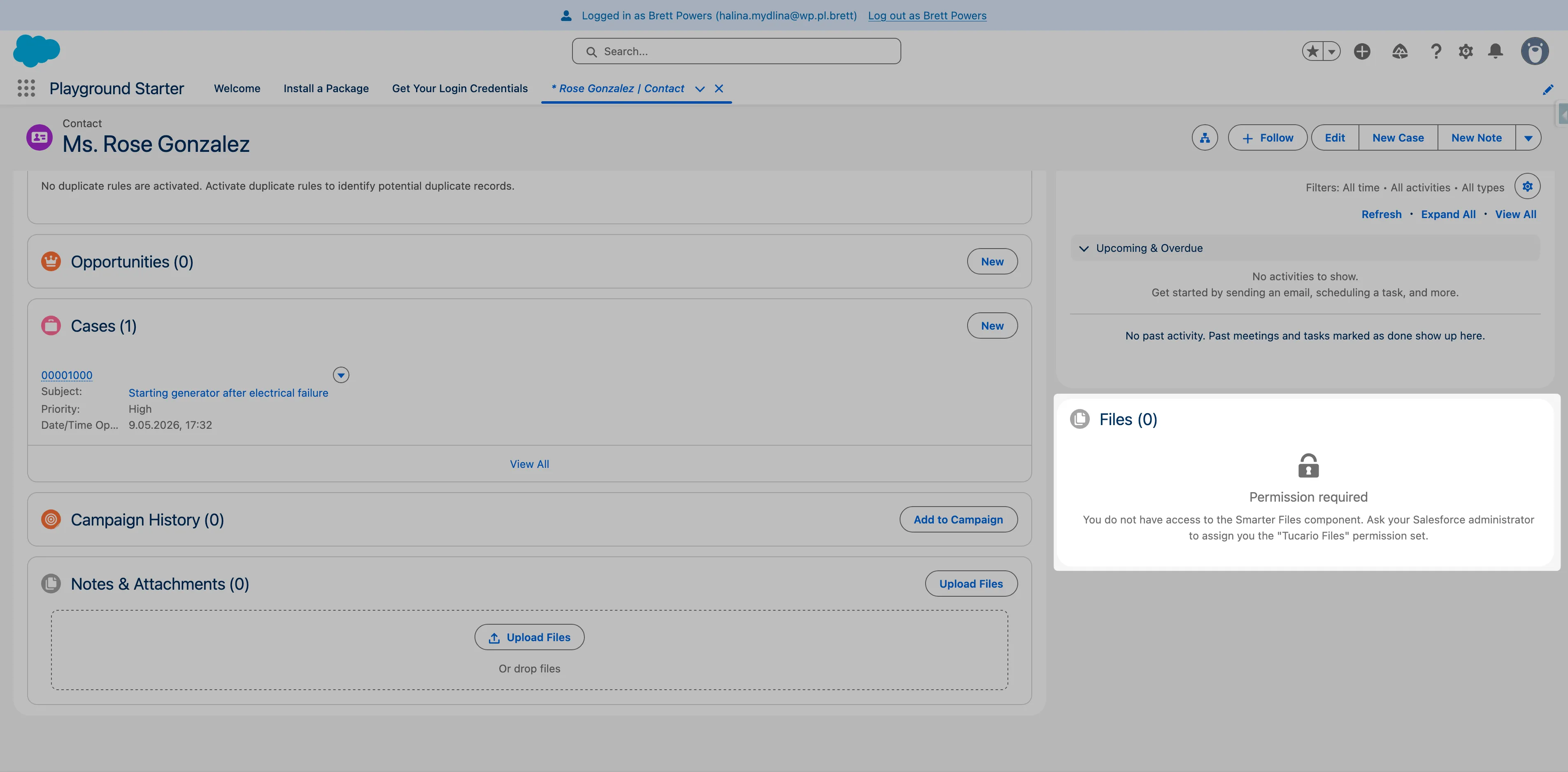
Empty and access-denied states
Section titled “Empty and access-denied states”| State | Trigger |
|---|---|
| Empty | No files match the user’s visibility — a friendly empty-state message is shown. |
| Missing Access | The user lacks the Apex class access required to call TucarioFileDownloadController — a lock icon and a help message render in place of the file list. |