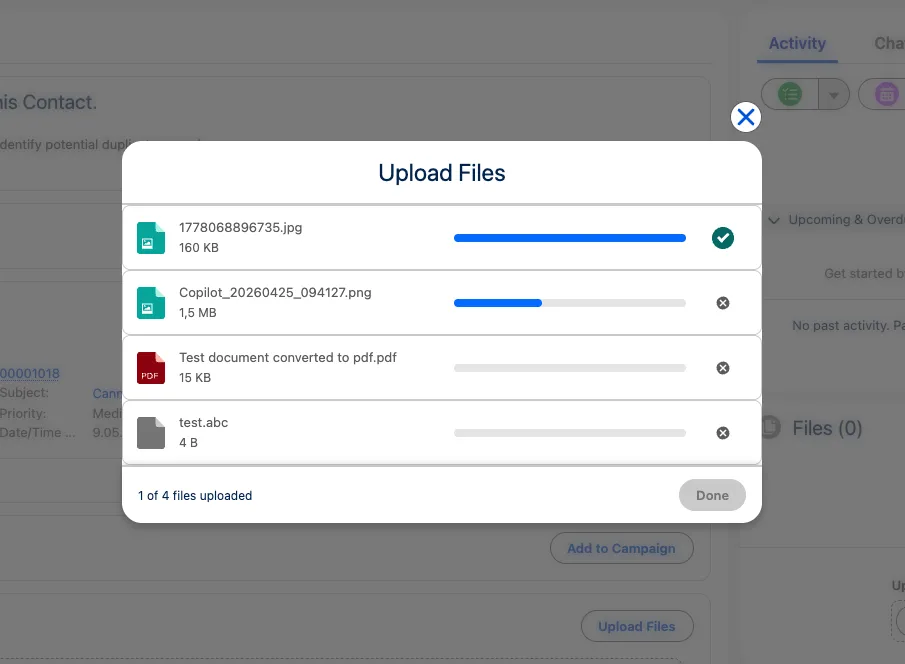
Upload Restrictions
Overview
Section titled “Overview”Admins can restrict uploads by file type and size directly in the component properties — no code required. Hint lines about allowed extensions and max size appear below the upload button when configured.
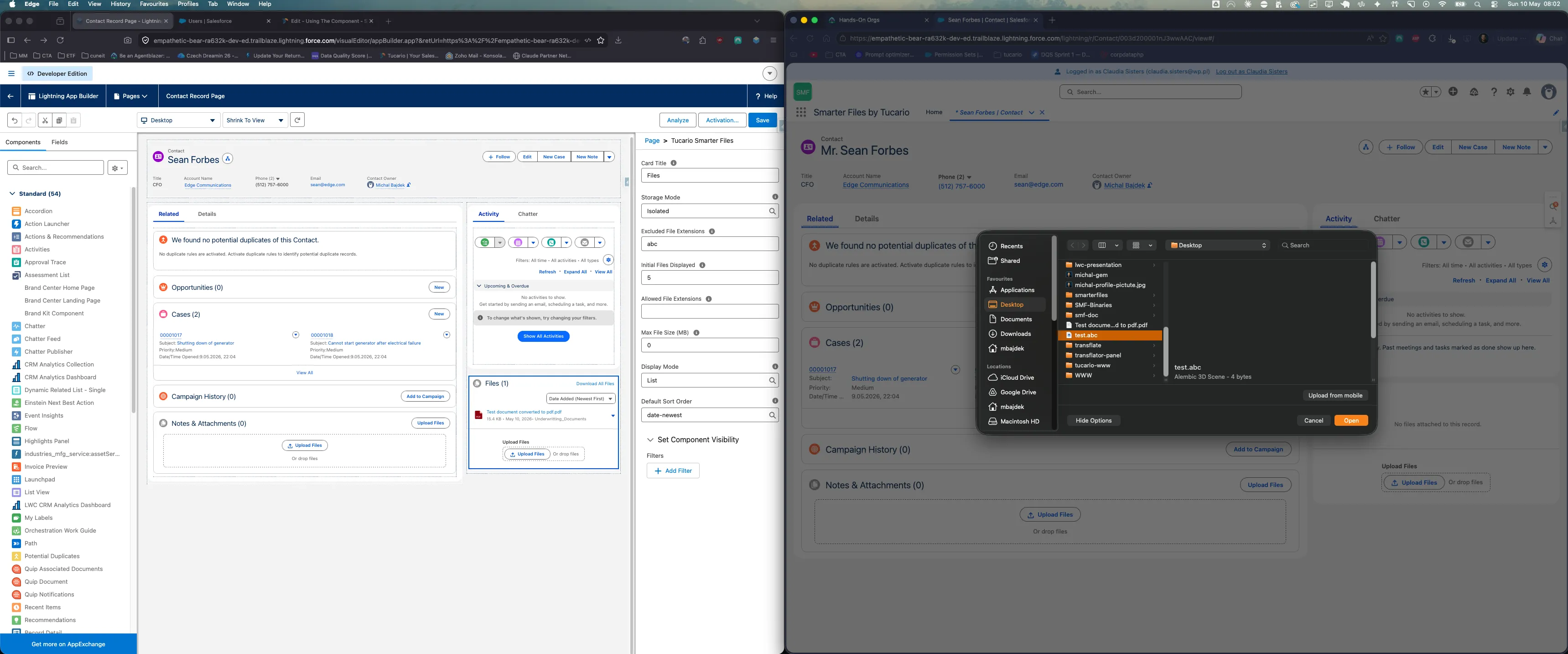
File Type Restrictions
Section titled “File Type Restrictions”Two properties control which file types are accepted:
Allowed File Extensions
Section titled “Allowed File Extensions”A whitelist of permitted extensions (e.g., pdf,docx,xlsx). When configured, only these types can be uploaded. Leave empty to allow all types.
Excluded File Extensions
Section titled “Excluded File Extensions”A blacklist of blocked extensions (e.g., exe,bat,sh). These types are rejected on upload. Leave empty to exclude nothing.
Using Both Together
Section titled “Using Both Together”When both are configured, they work as a combined filter:
- Allowed list is checked first — if the file’s extension is not on the allowed list, it is blocked.
- Excluded list is checked second — if the file passed the allowed check but is on the excluded list, it is still blocked.
A file must be on the allowed list and not on the excluded list to be accepted. See Component Setup for the full truth table.
File Size Limit
Section titled “File Size Limit”Set the Max File Size (MB) property to limit the maximum upload size. Set to 0 for no limit.
When a user attempts to upload a file that exceeds the limit, the upload is blocked and an error toast is displayed with the file name and the configured limit.
User Feedback
Section titled “User Feedback”When uploads are blocked, the component provides clear feedback:
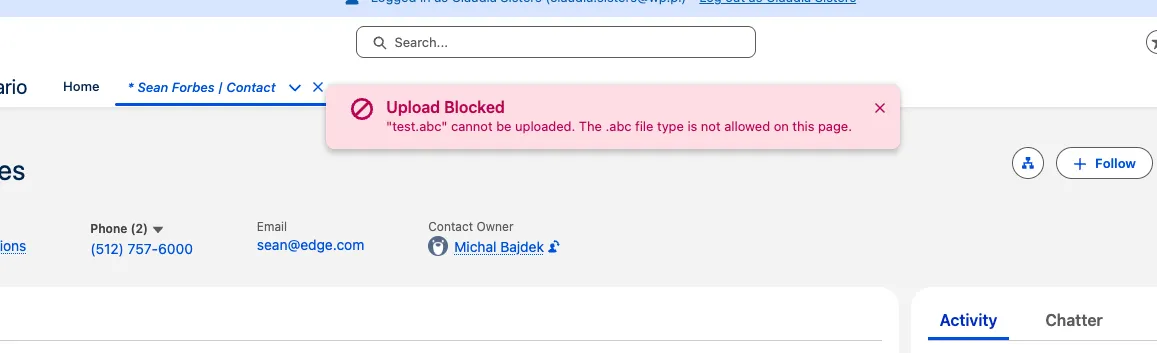
- Single file blocked — toast message names the file and explains why it was blocked (wrong type or too large).
- Multiple files blocked — toast lists all blocked files with the reason.
- Mixed upload — if some files succeed and others are blocked, both a success and a warning toast are shown.
Server-side validation runs after upload — files violating size or extension rules are rejected and a toast is shown even when the client-side check is bypassed.