Public Links
Overview
Section titled “Overview”Generate a public sharing URL for any file directly from the file’s context menu — no need to navigate to the file detail page or open a separate sharing modal.
How to Create a Public Link
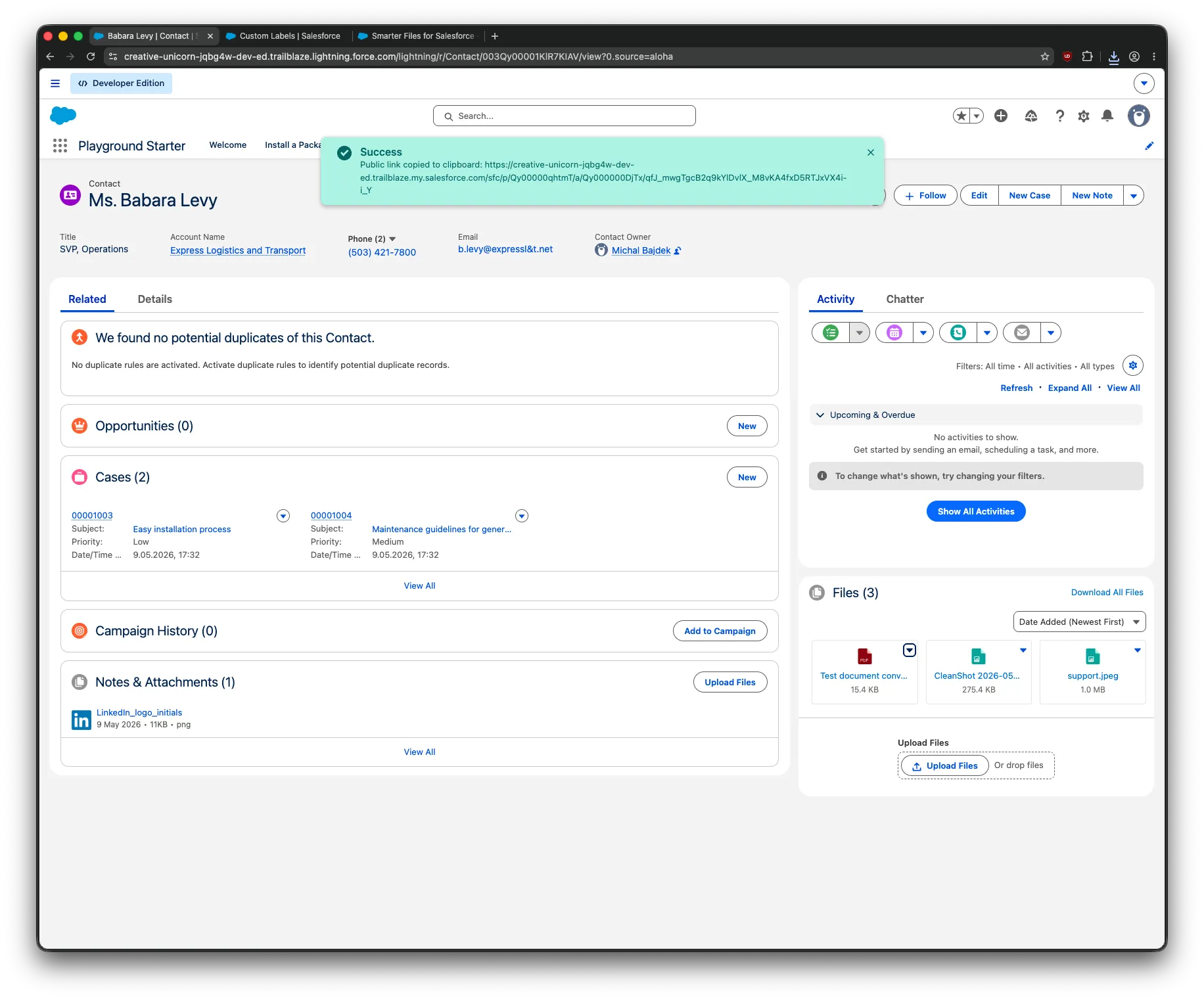
Section titled “How to Create a Public Link”- Click the context menu on the file you want to share.
- Select Public Link.
- Smarter Files creates a Salesforce Content Distribution record for the file and automatically copies the URL to your clipboard.
- A success toast confirms the link was created and copied.
The generated URL is a standard Salesforce public link — it requires no authentication and can be shared with anyone (including people outside your Salesforce org).
Requirements
Section titled “Requirements”- Content Deliveries and Public Links must be enabled for your org. Setup → search “Content Deliveries” → enable. Without this, the Public Link menu option is disabled and a tooltip explains why.
- The user creating the link needs delete access on the file (Salesforce’s standard rule for creating Content Distributions).
Managing Existing Links
Section titled “Managing Existing Links”Public Links created via Smarter Files appear in Salesforce under the file’s Distributions related list, alongside any links created through the standard UI. From there you can revoke them, set expiration dates, or require a password.