
Visibility Controls
Overview
Section titled “Overview”Visibility controls let admins restrict file access by document category (mapped to roles in the Salesforce role hierarchy) and let any user mark individual files as private. All filtering happens server-side in getFilesList() — restricted files never reach unauthorized browsers.
Storage Mode Requirement
Section titled “Storage Mode Requirement”| Standard | Isolated | |
|---|---|---|
| Files visible in standard Files related list | Yes | No |
| Category assignment | Not available | Available |
| Mark as Private | Not available | Available |
| Role-based visibility filtering | Not available | Available |
In Standard mode no junction record is created, so there’s nowhere to store the category or private flag. Switch to Isolated for any record where visibility filtering matters. See Storage Modes.
Document Categories
Section titled “Document Categories”A category is a label assigned to a file that determines who can see it. Categories live in Tucario_Visibility_Rule__mdt records and are managed through the Configuration Wizard.
Common examples: HR Documents, Underwriting Documents, Financial Reports, Legal Contracts, Medical Records.
How Filtering Works
Section titled “How Filtering Works”Each rule maps a category to a list of permitted role DeveloperName values. For each file:
- File has no category → visible to everyone (default open).
- File has a category, user’s role is on the permitted list → visible.
- File has a category, user’s role is not permitted → hidden.
- File has a category, rule is inactive (
Is_Active = false) → visible to everyone (deactivated rules don’t filter). - User has the Manage Categories custom permission → bypass category filtering (always sees every file).
Multiple rules referencing the same category combine with OR logic — a user passes if their role is on any permitted list for the category.
Assigning a Category to a File
Section titled “Assigning a Category to a File”Users with Manage Categories can assign a category from the file’s context menu:
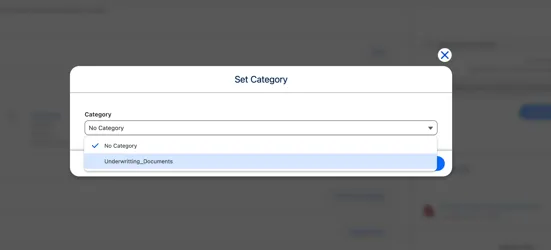
- Open the file’s context menu and select Set Category.
- Pick a category from the picker, or select No Category to clear.
- The file’s visibility updates immediately.
Configuring Visibility Rules
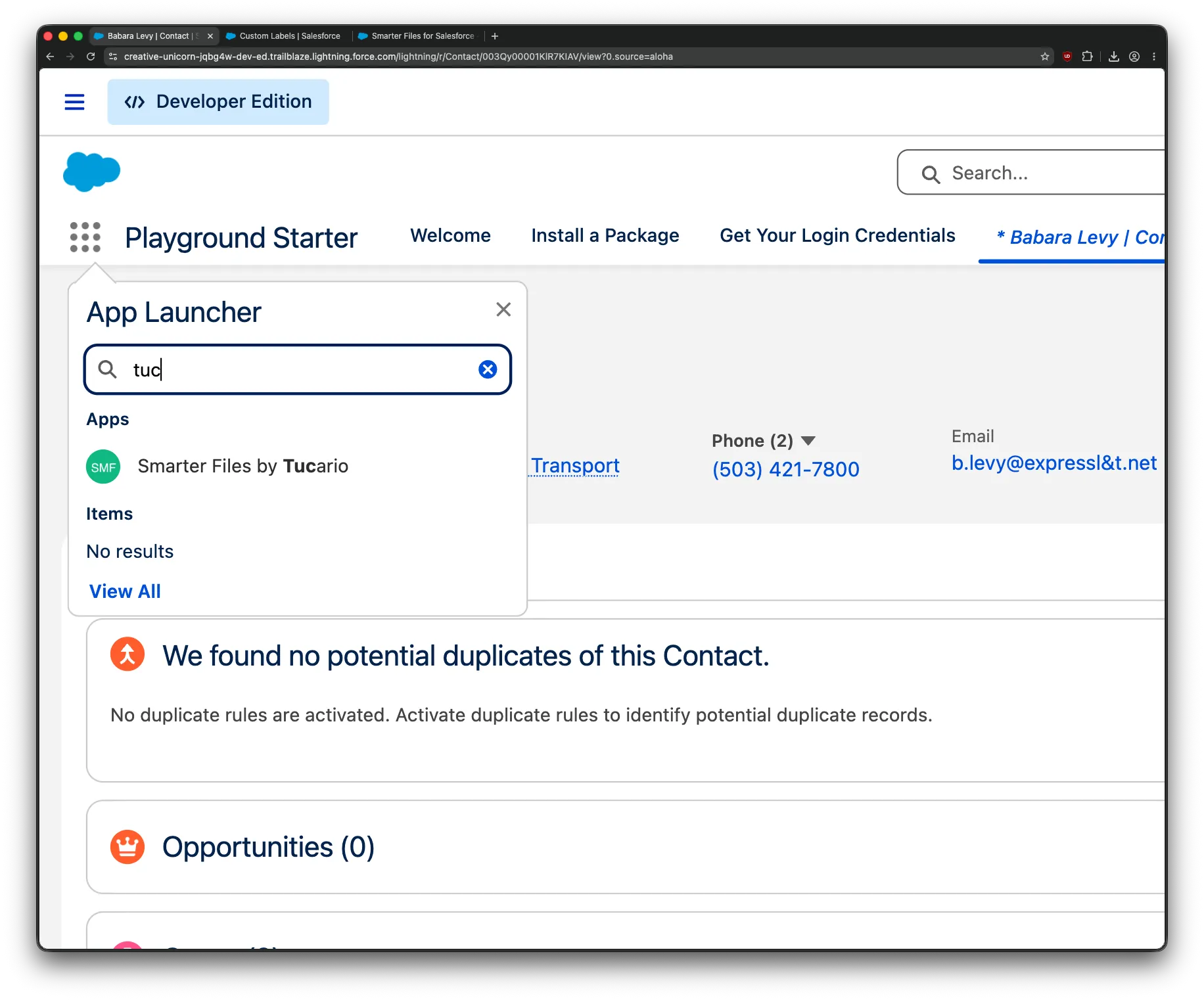
Section titled “Configuring Visibility Rules”The Configuration Wizard is the admin UI for defining document categories and the role-based visibility rules that govern them. Open the Smarter Files by Tucario app from the App Launcher — the app’s home tab is overridden to the Configuration Wizard FlexiPage.
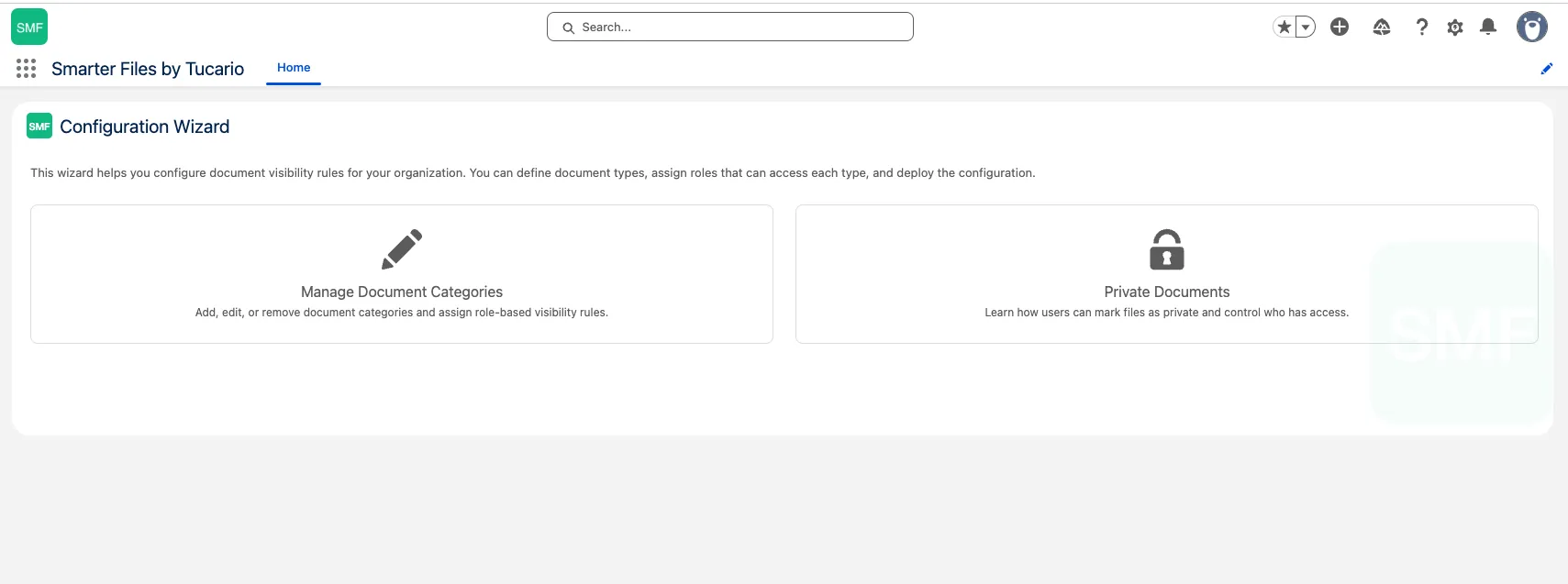
Click Manage Document Categories to enter the 3-step rule wizard.
Authorization
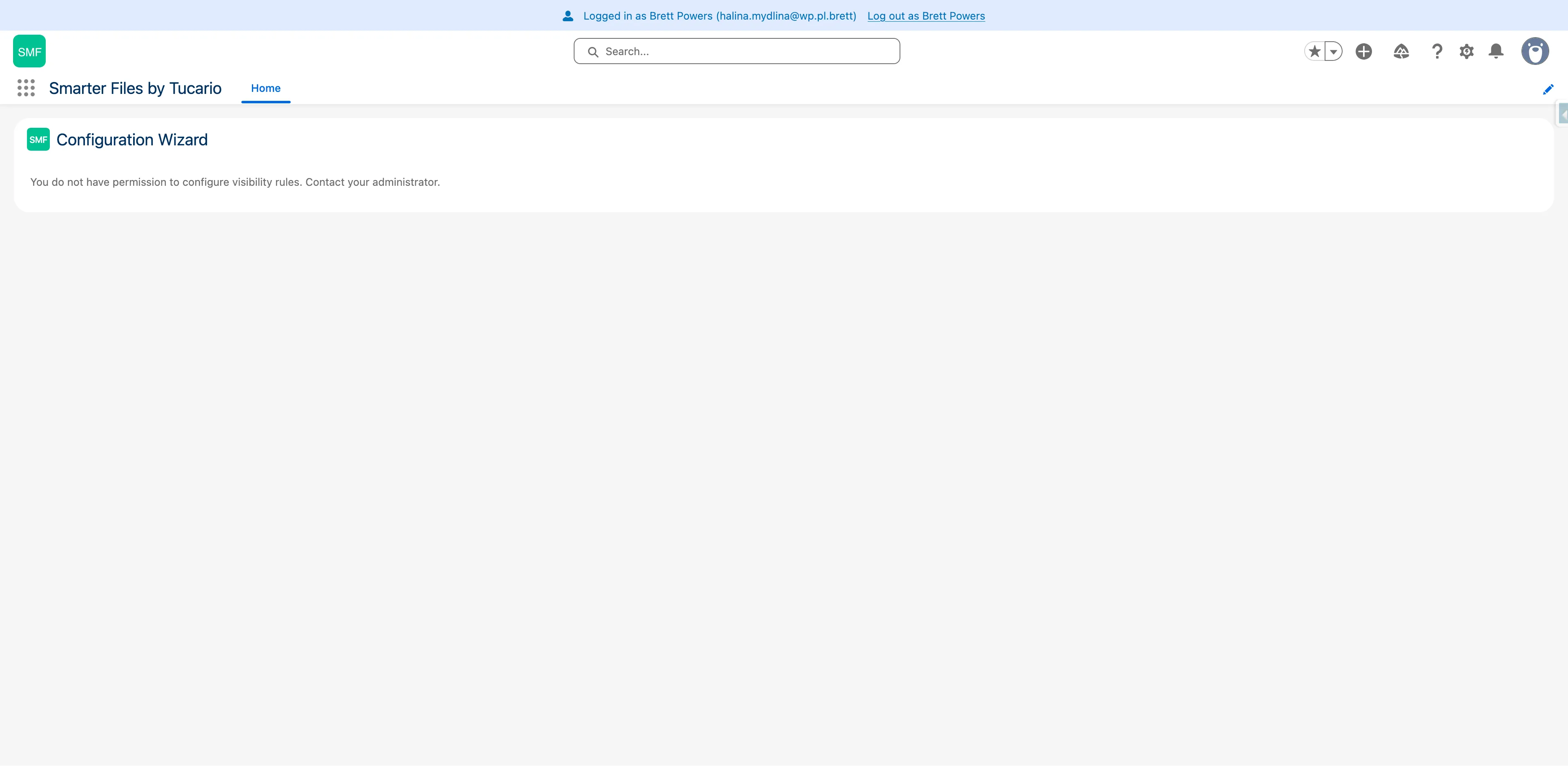
Section titled “Authorization”Only users with the Tucario_Manage_Categories custom permission can use the wizard. Users without it see an “Unauthorized” message in place of the wizard body.
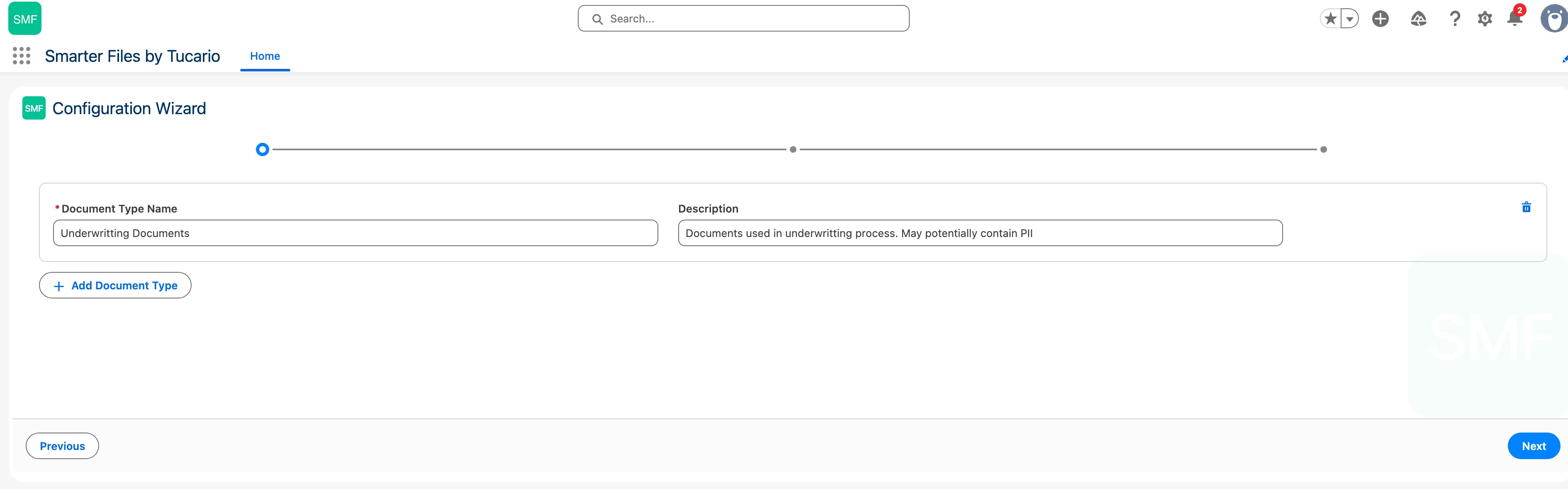
Step 1 — Document Types
Section titled “Step 1 — Document Types”Define the categories. Each entry has a Name (required) and a Description (optional). Use Add Document Type to add rows; click the trash icon on a row to remove it.
Step 2 — Assign Roles
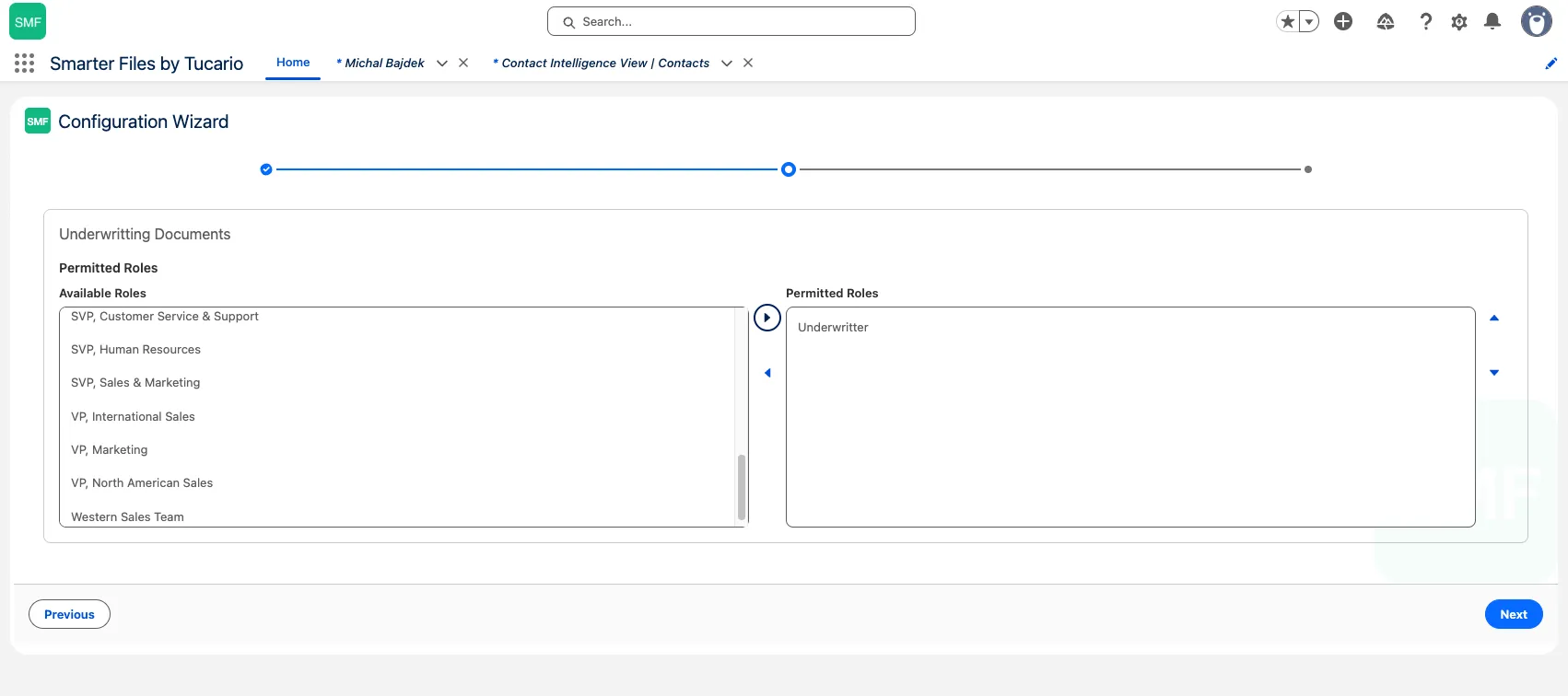
Section titled “Step 2 — Assign Roles”For each document type, pick which roles from your org’s role hierarchy are allowed to see files in that category. The picker is a lightning-dual-listbox with Available Roles on the left and Permitted Roles on the right.
If your org has no roles defined, the wizard displays an informational message instead of the picker.
Step 3 — Review & Deploy
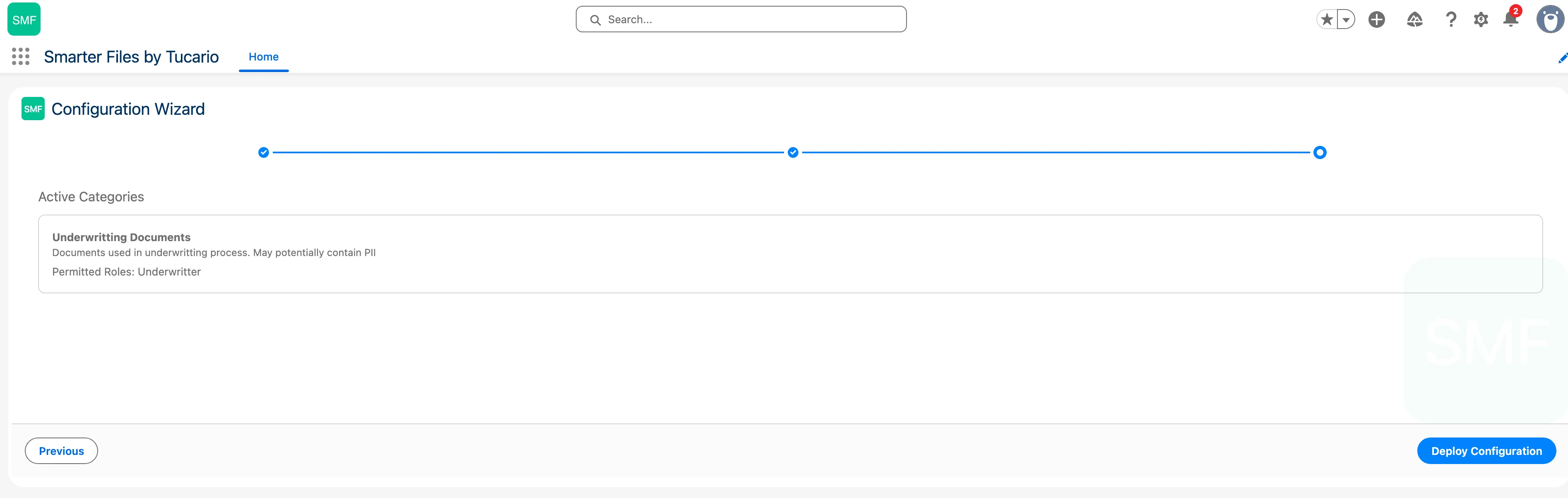
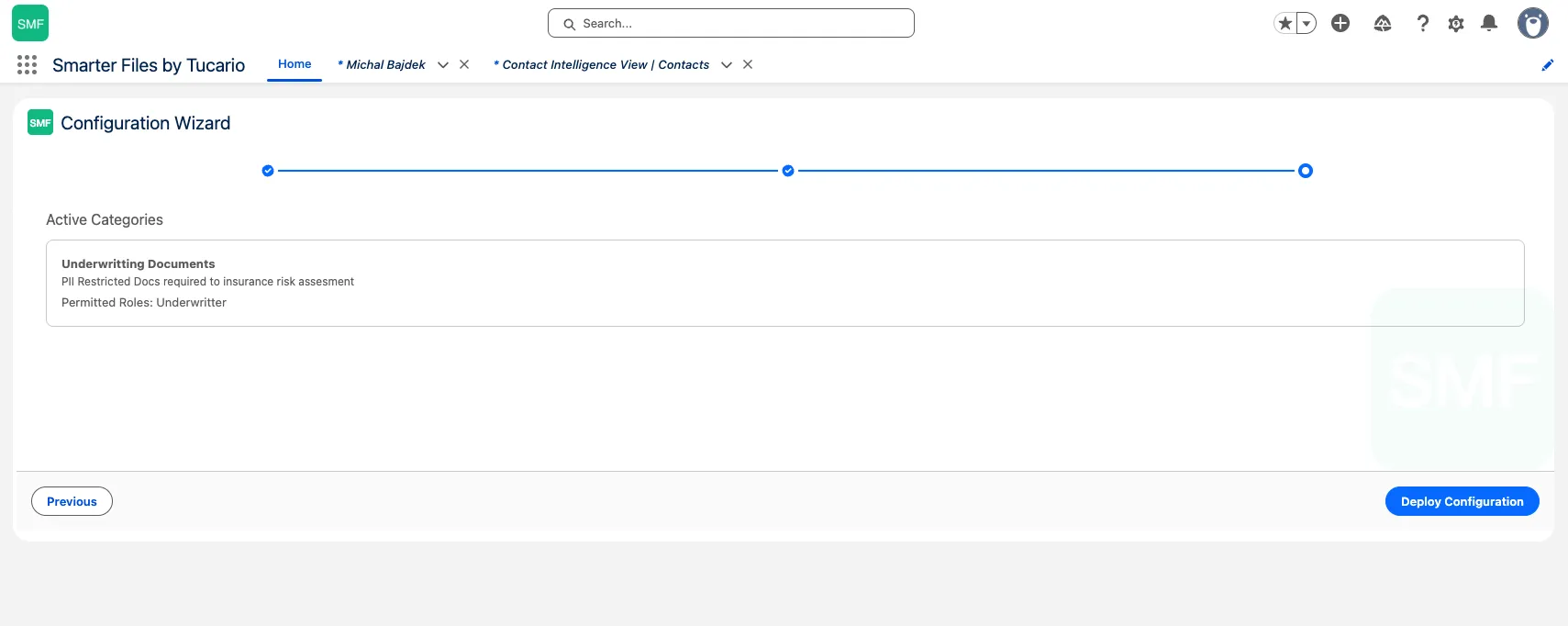
Section titled “Step 3 — Review & Deploy”A summary of the configuration: each document type with its description and a comma-separated list of permitted roles. If you removed a category that was previously deployed, it appears under Categories to Deactivate.
Clicking Deploy Configuration triggers Metadata.Operations.enqueueDeployment() to write the rules as Tucario_Visibility_Rule__mdt records asynchronously. While the deployment runs, a spinner appears next to the button. The wizard polls for completion via TucarioDeployCallback.
How rules are stored
Section titled “How rules are stored”Each category becomes a Tucario_Visibility_Rule__mdt record. Multiple rules referencing the same category combine permitted roles using OR logic — a user passes the category check if their role appears in any active rule for that category. If no active rule references a category, files in that category are open to everyone (default open).
Private Documents
Section titled “Private Documents”In addition to category-based filtering, any user can mark individual files as private — visible only to themselves and users with the View Private Documents permission. See Private Documents for the full flow.
Combined Filtering Logic
Section titled “Combined Filtering Logic”When a file has both a category and a private flag, both checks must pass for it to be visible. Pseudocode for getFilesList():
For each file on the record:  1. Private check:     If Is_Private AND user is not Owner_Id     AND user lacks "View Private Documents" → HIDE
  2. Category check:     If Visibility_Category is set     AND a matching active rule exists     AND user's role is not in Permitted_Roles     AND user lacks "Manage Categories" → HIDE
  3. Otherwise → SHOW
The most restrictive of the two checks wins.
Permission Sets
Section titled “Permission Sets”| Permission Set | Purpose |
|---|---|
| Tucario Files | Base access. Required for every user. Grants the app, controllers, and junction object. |
| Tucario - Manage File Categories | Set Category menu access + bypass category filtering (always see every file). |
| Tucario - View Private Documents | See files marked private by other users. |
Use Cases
Section titled “Use Cases”- HR documents visible only to HR roles, with private flagging for individual employee records.
- Financial reports restricted to finance roles, regardless of who uploaded them.
- Legal contracts locked to legal department roles, with private flagging on draft contracts.
- Underwriting documents containing PII, restricted to underwriter roles.
- Confidential attachments on a shared record — second component instance in Isolated mode with categories applied, hidden from the standard Files related list entirely.