
Installation
Prerequisites
Section titled “Prerequisites”- Salesforce org with Lightning Experience enabled
- API version 60.0+ (Spring ‘24 or later); the package itself is built for API 65.0
- “Modify All Data” or equivalent metadata deployment permissions
- Salesforce CLI (
sf) installed locally if you deploy from source
AppExchange Edition (Managed Package)
Section titled “AppExchange Edition (Managed Package)”Smarter Files is distributed as a 2GP managed package. Install the version provided in your release email or directly from the AppExchange listing.
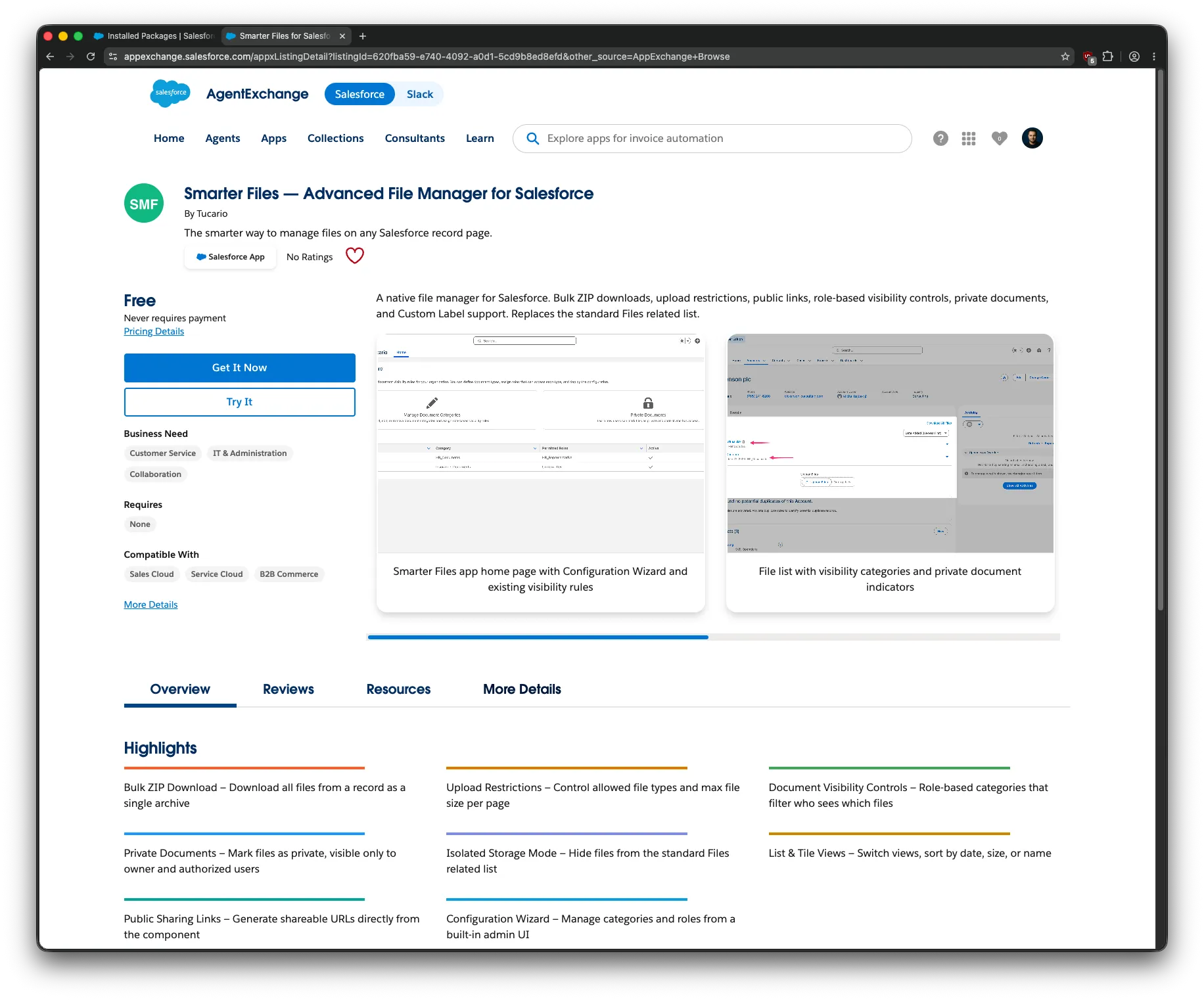
- Open the install link from your Tucario sales contact (or the AppExchange listing).
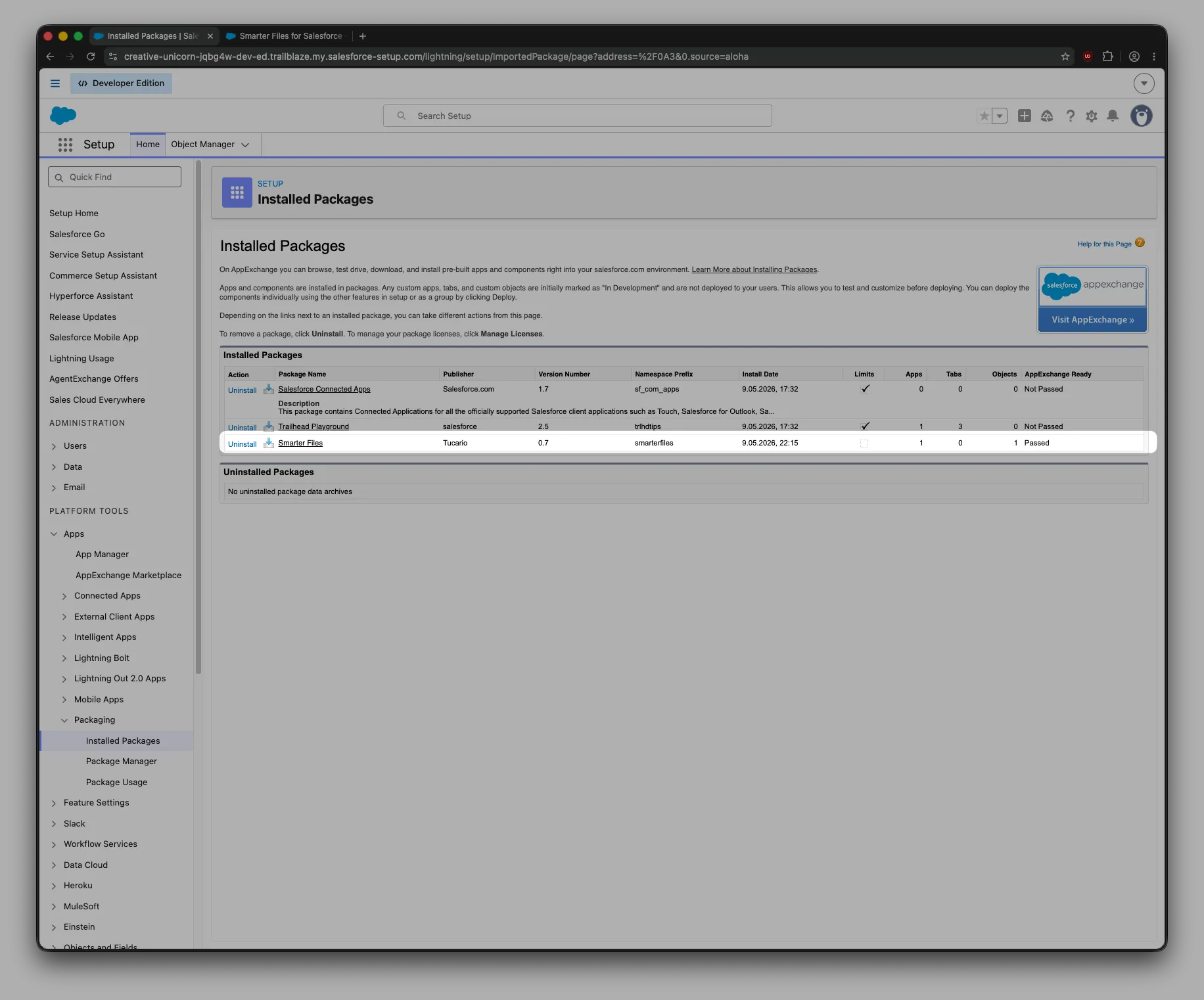
- Choose Install for All Users, Install for Admins Only, or Install for Specific Profiles depending on how you want access controlled.
- Approve any third-party access prompts and wait for the install to finish.
Post-install steps
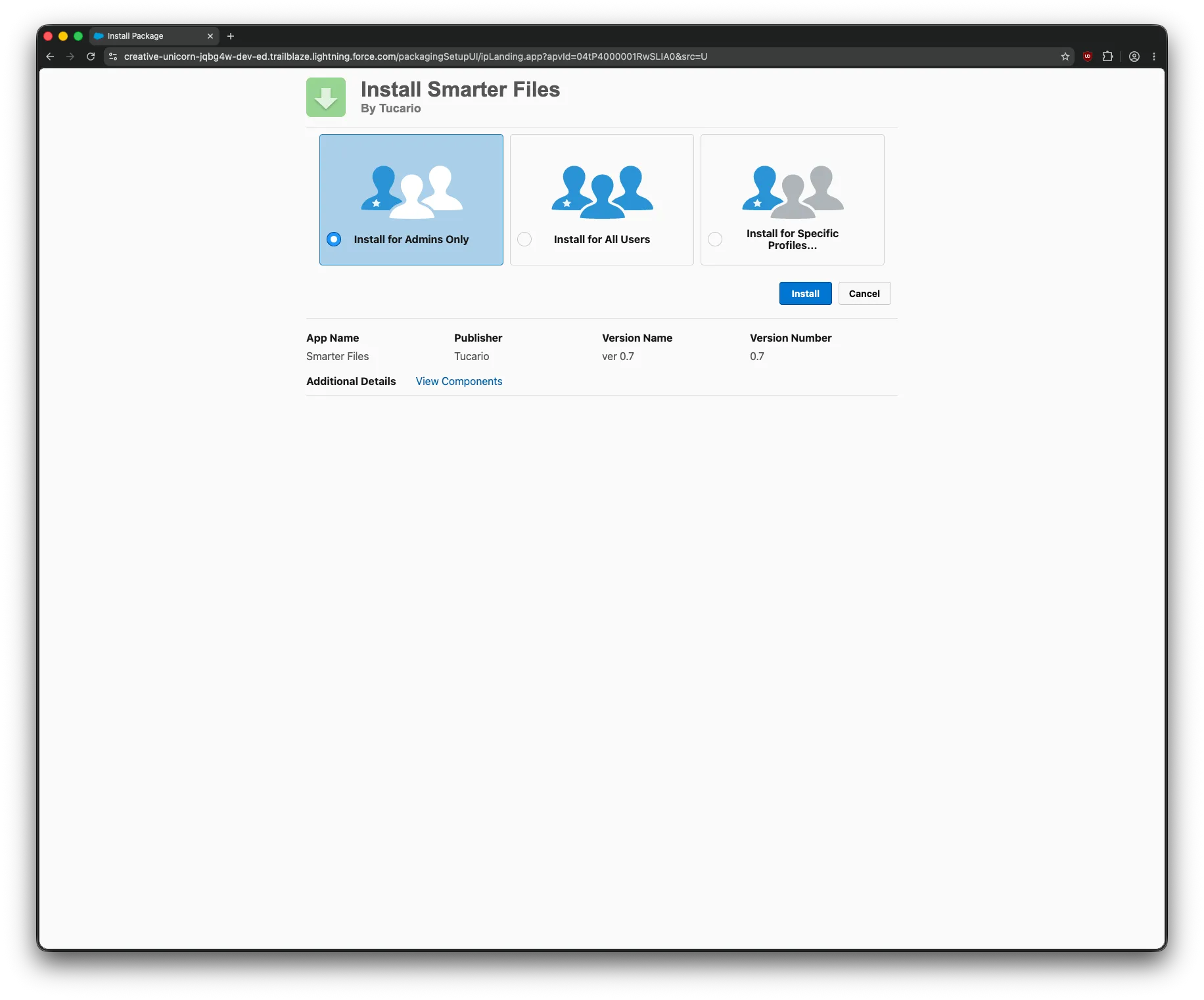
Section titled “Post-install steps”- Verify the static resource — open Setup → Static Resources and confirm
TucarioJSZipis present (used for client-side ZIP creation). - Open the Smarter Files app — App Launcher → search for Smarter Files by Tucario. Its home tab is overridden to the Configuration Wizard FlexiPage.
- Add the component to a record page — open Lightning App Builder for any record page (e.g., Account) and drag Tucario Smarter Files onto the layout.
- Configure component properties — see Component Setup.
- Activate the page — save and assign the Lightning page to the relevant app/profile.
- Assign permission sets — see Admin Settings.
Verify a clean install
Section titled “Verify a clean install”Run the following as a sanity check before configuring:
| Check | How |
|---|---|
| App is visible | App Launcher shows “Smarter Files by Tucario” |
| Custom object deployed | Setup → Object Manager → Tucario_File_Visibility__c exists |
| Custom Metadata Type deployed | Setup → Custom Metadata Types → Tucario_Visibility_Rule__mdt exists |
| Apex classes deployed | Setup → Apex Classes → search “Tucario” returns at least 5 classes |
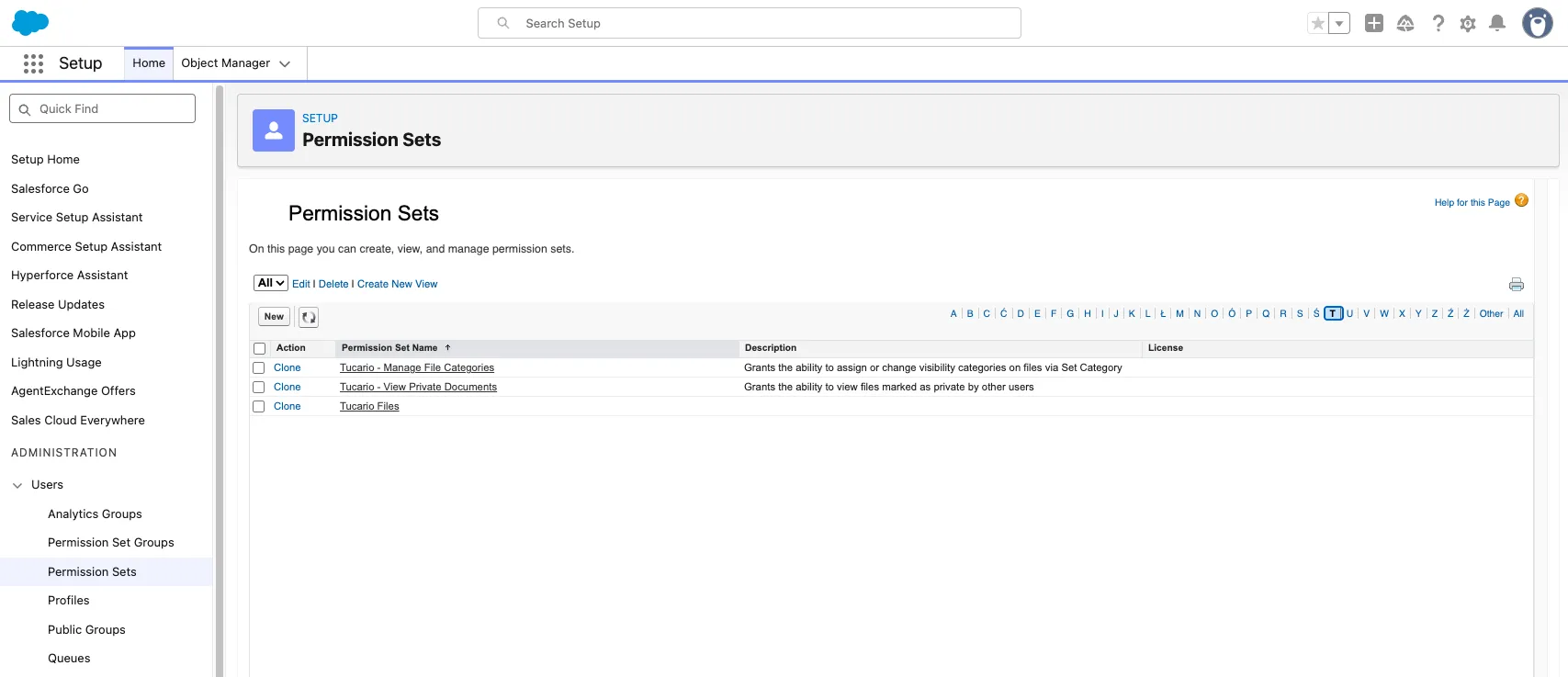
| Permission sets deployed | Setup → Permission Sets → 3 sets starting with “Tucario” |
Assign Permission Sets
Section titled “Assign Permission Sets”Smarter Files ships with three permission sets. Every user who interacts with the component needs at least the base set.
| Permission Set | Required for | Grants |
|---|---|---|
| Tucario Files (Base) | Every user of the component | App access, CRUD on the visibility junction object, access to the file controllers |
| Tucario - Manage File Categories | Admins and category owners | Custom permission Tucario_Manage_Categories — assign categories on files, bypass category filtering |
| Tucario - View Private Documents | Admins, HR, compliance | Custom permission Tucario_View_Private_Documents — see files marked private by other users |
Assign via Setup → Permission Sets → [name] → Manage Assignments.
Add the Component to a Record Page
Section titled “Add the Component to a Record Page”- Open any record page in Lightning App Builder.
- Drag Smarter Files from the component palette onto the layout.
- Configure the design properties in the right-hand panel — see Component Setup for the full property reference.
- Save and activate the page.
Requirements
Section titled “Requirements”- Salesforce Enterprise, Professional, or Unlimited edition.
- Lightning Experience enabled.
- Platform Starter / Platform Plus licenses are supported — no full Salesforce license required.
- For Public Link generation: Content Deliveries and Public Links must be enabled (Setup → Salesforce Files).