
File Actions
Per-file action menu
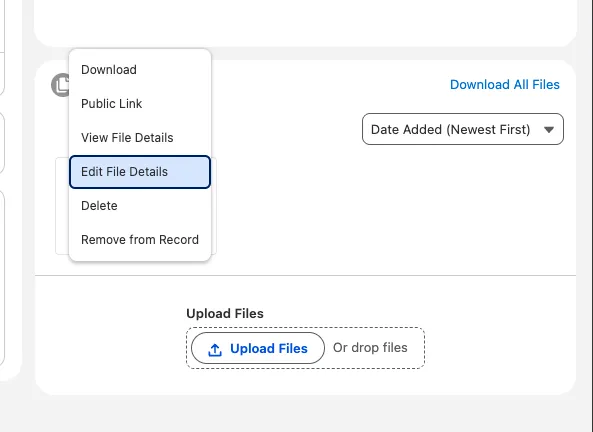
Section titled “Per-file action menu”Each file has a button menu (vertical ellipsis) on the right of the row, or the overlay button on a tile. The available items are conditional on the user’s permissions and the component’s storage mode.
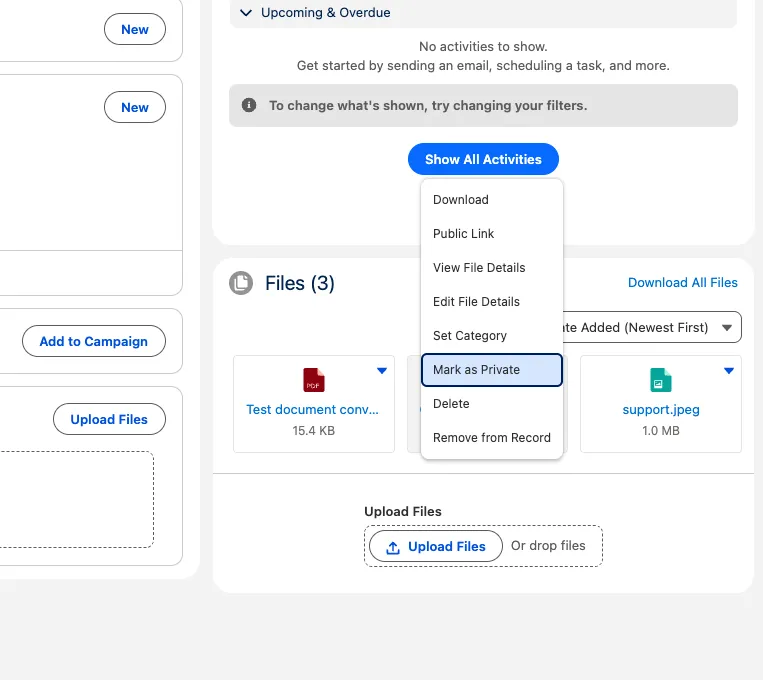
| Action | When shown |
|---|---|
| Download | Always |
| Public Link | Only when Content Delivery is enabled in the org |
| View Details | Always |
| Edit Details | When the user has edit access to the ContentDocument |
| Set Category | Isolated mode + user has the Tucario_Manage_Categories permission |
| Mark as Private | Isolated mode + the file is not already private |
| Remove Private | Isolated mode + the current user owns the privacy flag |
| Delete | When the user has delete access (Platform license = ownership-based) |
| Remove from Record | When the user has edit access |
Native File Preview
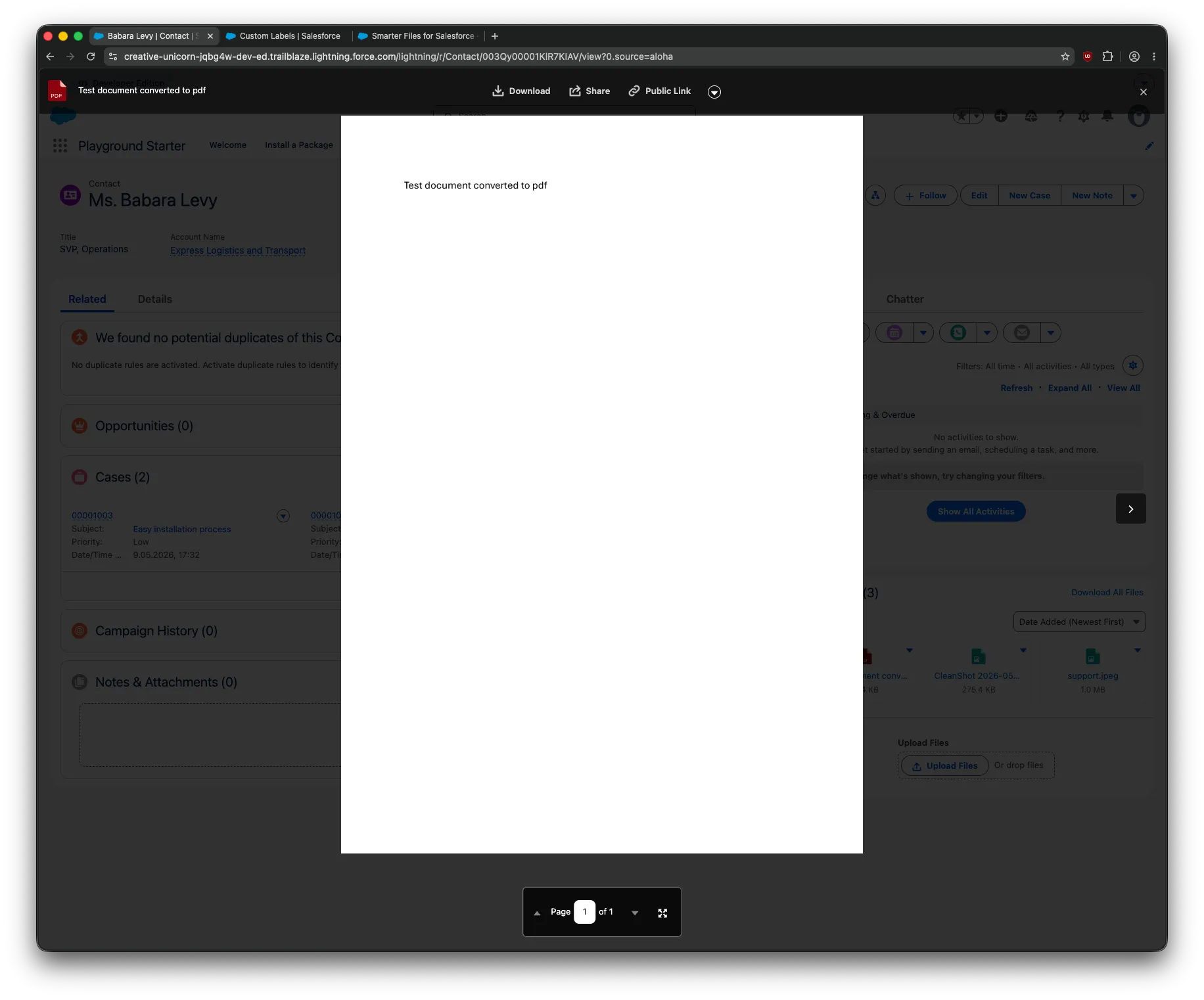
Section titled “Native File Preview”Clicking the file name (List view) or the tile body (Tile view) opens the standard Salesforce file preview overlay — the same one users already know from the native Files component. Supports everything Salesforce previews natively (PDFs, images, Office documents, video, audio).
Edit Details
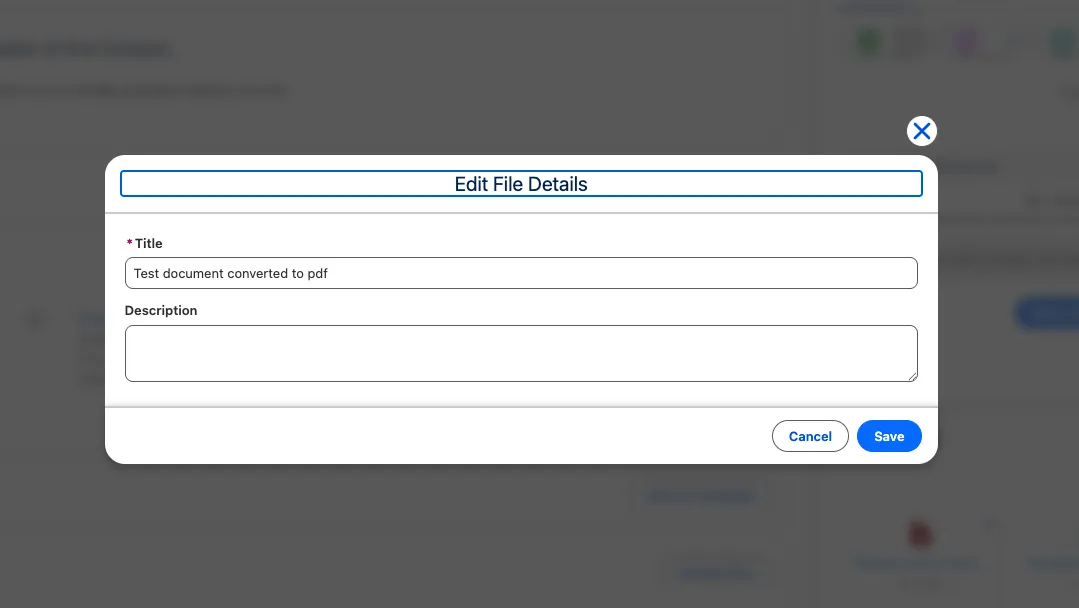
Section titled “Edit Details”Triggers a modal (tucarioFileEditModal) that uses lightning-record-edit-form on ContentDocument, exposing Title and Description fields. After saving, the file list refreshes automatically without a full page reload.
Public Link
Section titled “Public Link”The Public Link action calls createPublicLink and copies the resulting URL to the clipboard. A toast confirms the action. See Public Links.
Delete and Remove from Record
Section titled “Delete and Remove from Record”- Delete permanently removes the file from Salesforce (confirmation modal first). Available to users with delete access — for Platform Starter / Platform Plus licenses this is ownership-based.
- Remove from Record unlinks the file from this record but keeps it in the org’s file library. Useful when a file was attached to the wrong record.